
Create a New Quote with Siklop
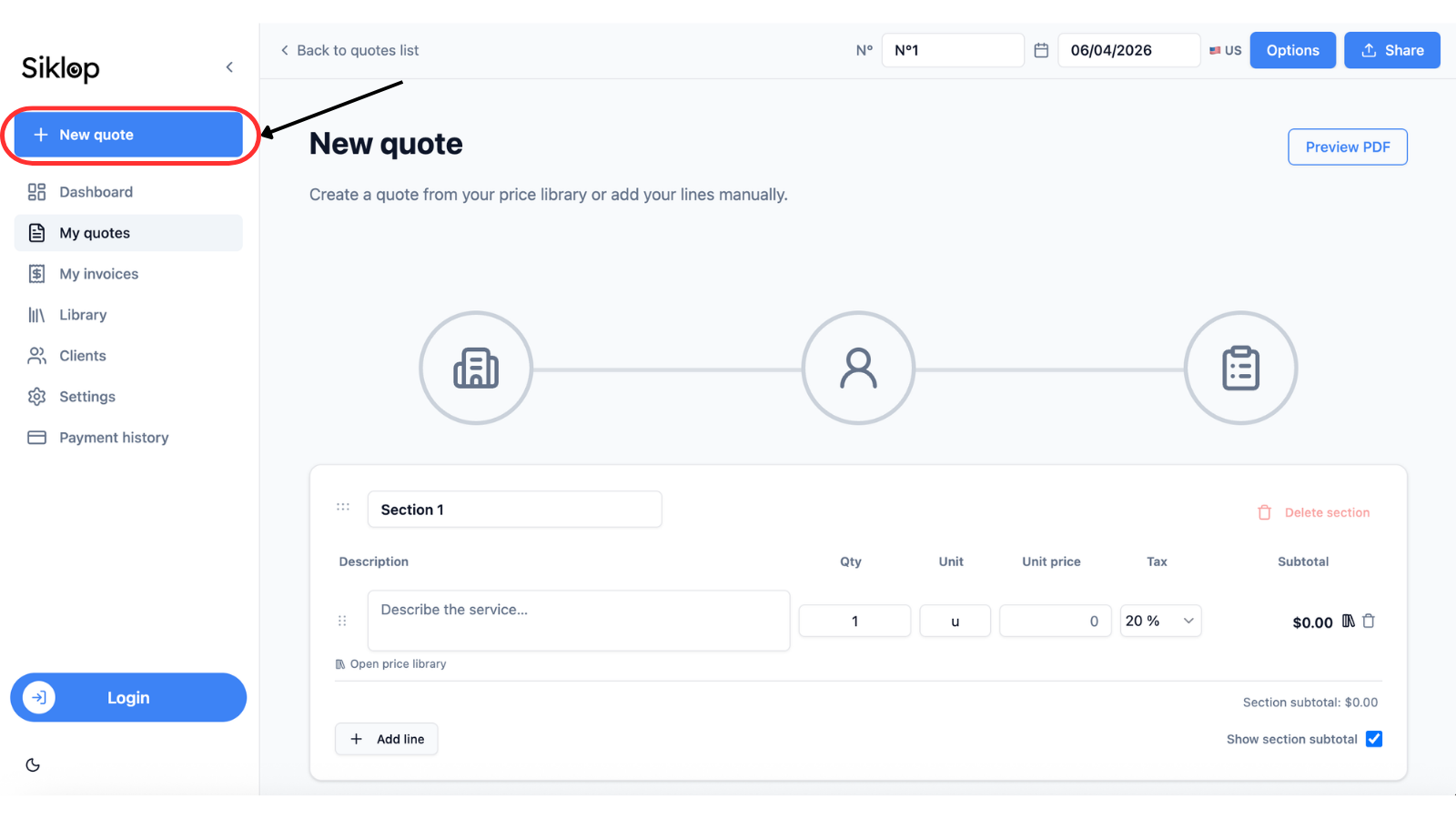
To get started, open Siklop and click New Quote. You will be taken directly to the quote editor, where you can customize your document, add your information, and prepare a proposal tailored to your client's needs.
Enter the Quote Number and Date
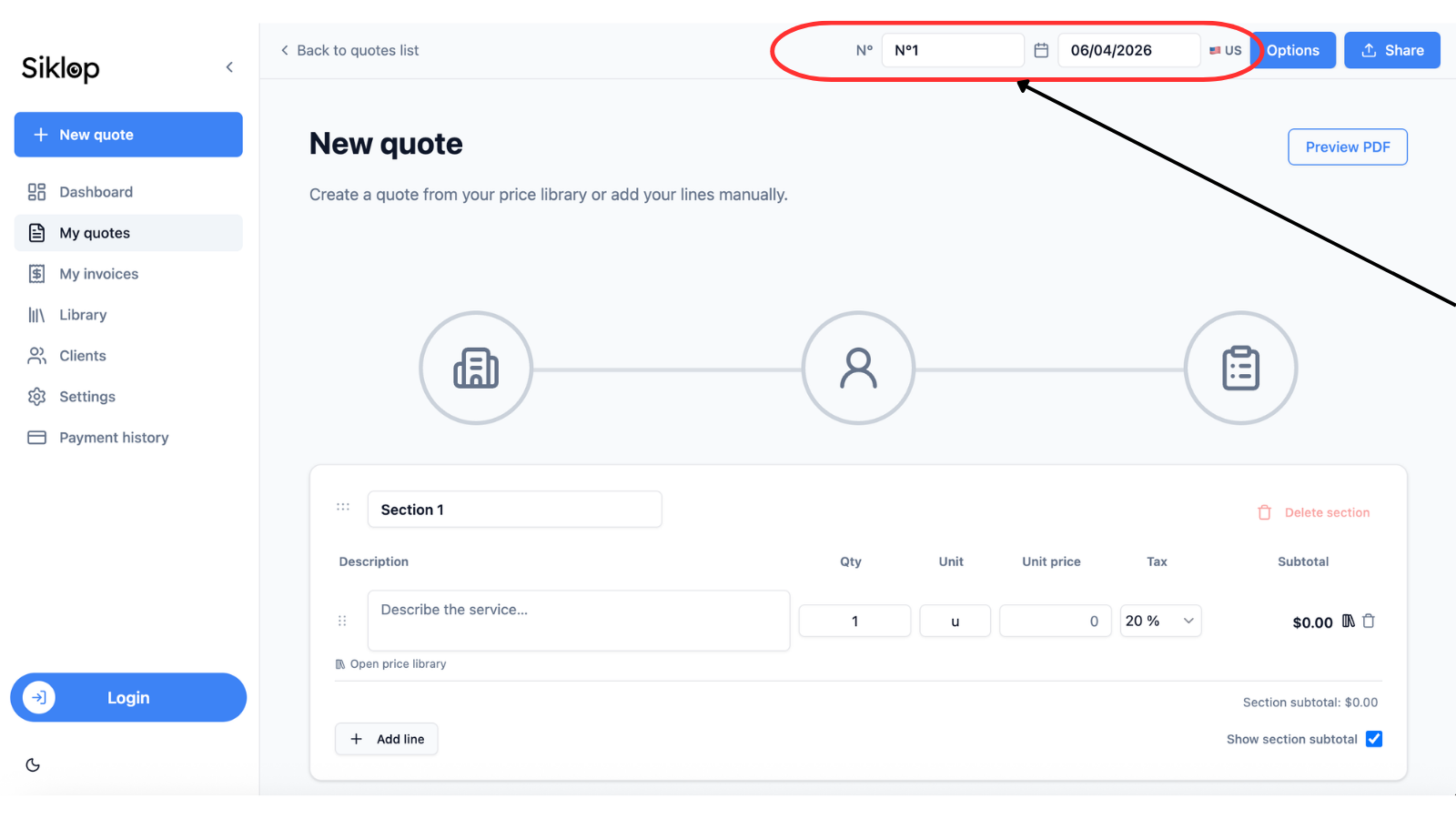
Every quote includes a unique quote number and an issue date. The current date is automatically filled in when the quote is created, but you can change it at any time by clicking directly on the date field or the calendar icon.
You can also change the date display format using the European or American flag button if you want to match the date format commonly used by your international clients.
Siklop automatically generates a quote number in the format No. 1, but you can enter any quote number you want directly into the field. This change will only apply to the current quote.
If you want to use a custom numbering system for all future quotes, you can define your own format and starting number in Settings → General → Numbering. This allows you to keep the same numbering system you used in your previous software or existing workflow.
Complete the Quote Information
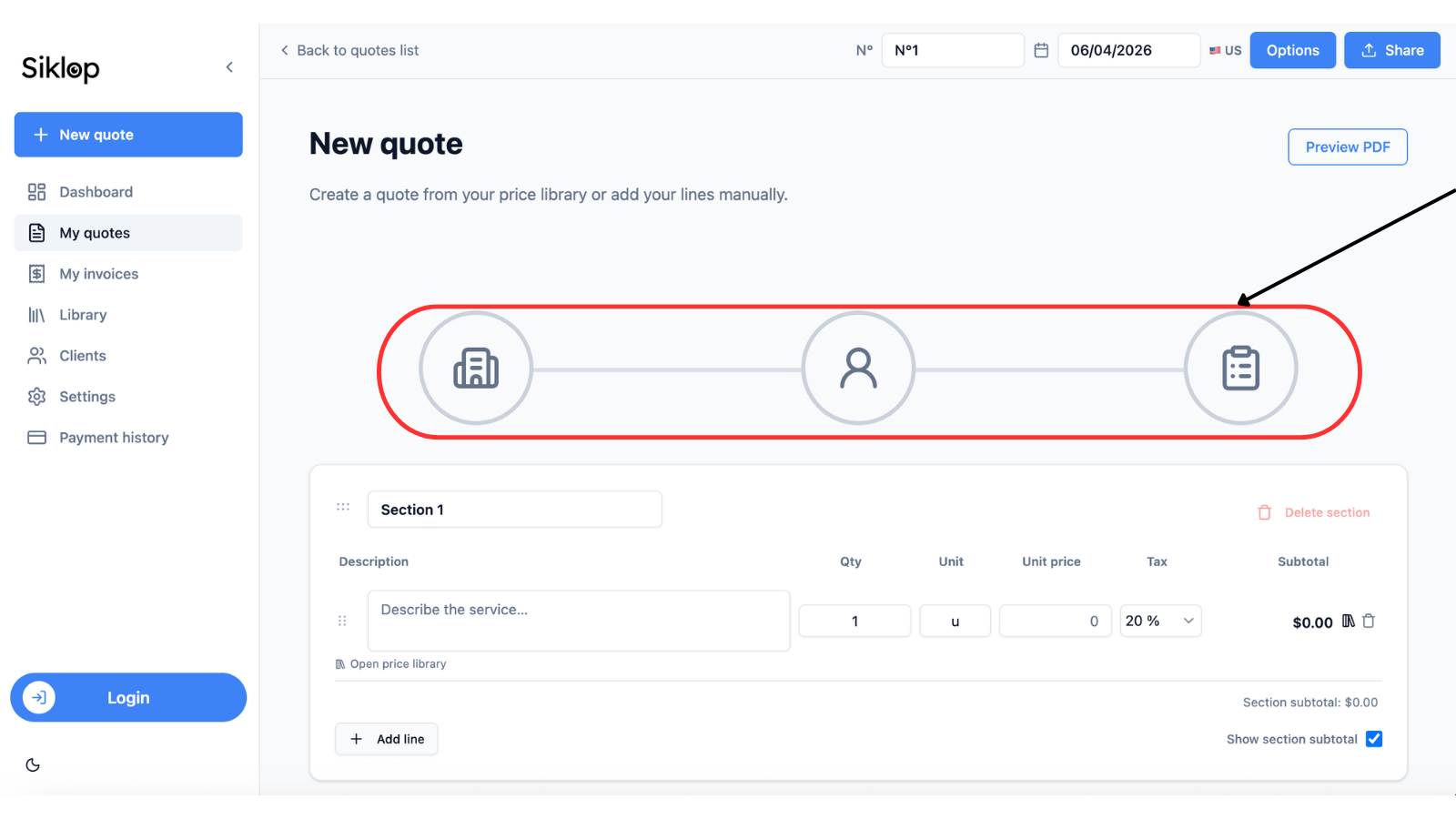
To enter the information for your quote, click on the three circles displayed in the center of the screen. They allow you to complete the company, client, and project information associated with the quote.
The first circle is used to enter your company information. A panel will open on the right side of the screen, allowing you to add the details you want to display on your quotes, such as your company name, address, phone number, and email address. You can also upload your company logo to personalize your documents.
The second circle is dedicated to your client. Here, you can enter the contact information of the client for whom you are preparing the quote. This information will automatically appear on the final document.
For Premium users and higher plans, it is also possible to select an existing client by clicking Choose an Existing Client. This feature saves time when working with recurring clients. The quote will automatically be linked to the corresponding client record, allowing you to easily access the complete history of quotes and invoices from the Clients section.
The third circle relates to the project. This step is optional but can be useful for adding additional information about the job, service, or project you are preparing a quote for.
Once the required information has been entered, the corresponding circle turns green to indicate that the section has been completed. You can edit this information at any time by simply clicking on the relevant circle.
Add and Organize Your Sections
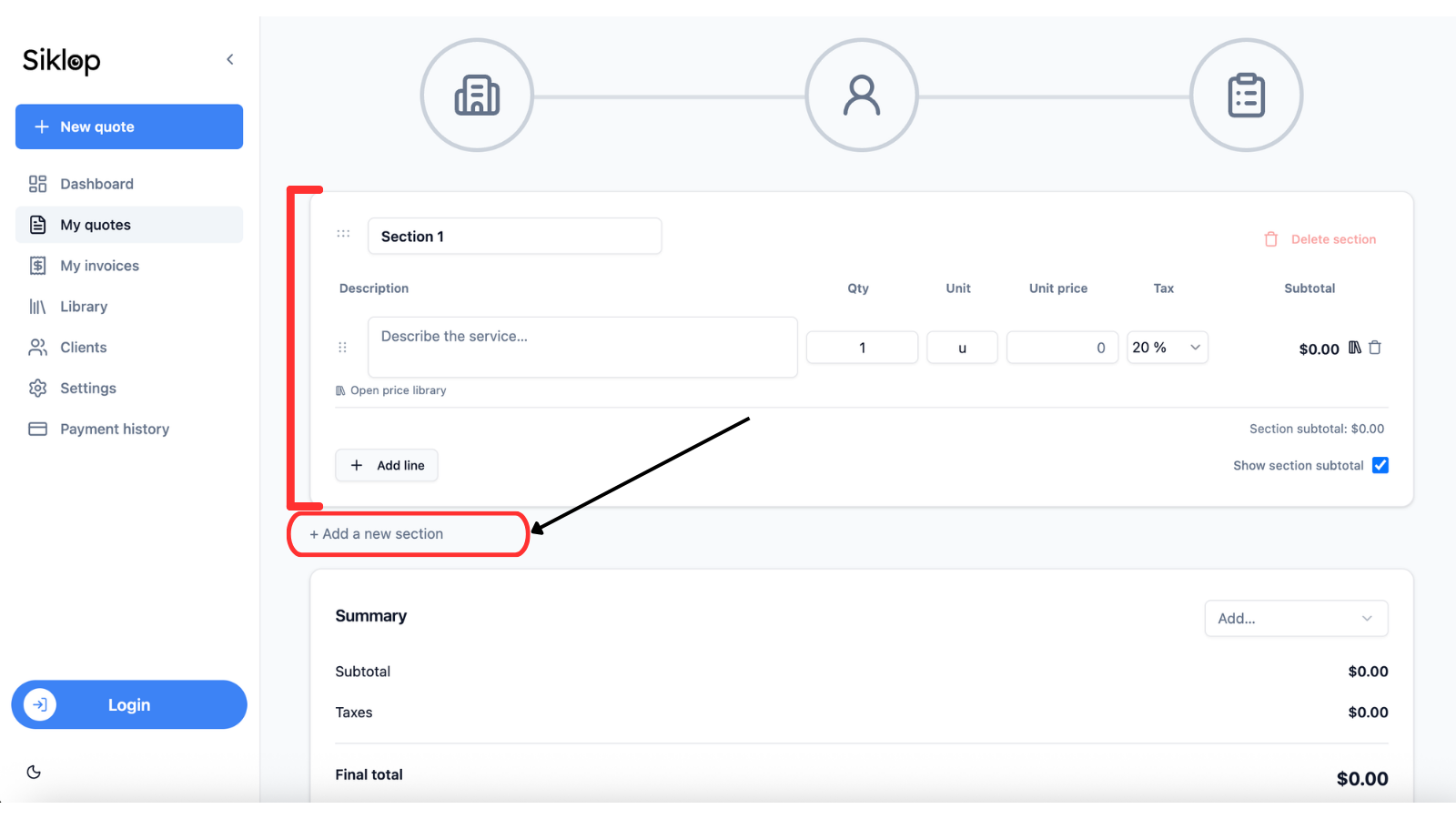
Sections help you organize your quote when you need to separate multiple services, project phases, or work categories within the same document. Each section then contains the individual line items used to describe and price your services.
In most cases, a simple quote will contain only one section. However, if you are providing multiple services for the same client, sections can make your quote much clearer and more professional.
For example, a contractor renovating a kitchen and a bathroom could create:
- Section 1: Kitchen
- Section 2: Bathroom
They can then add all related materials, supplies, and services to the appropriate section. This structure makes the quote easier to read and allows the client to quickly understand the scope of work and the cost associated with each part of the project.
To add a new section, simply click the Add New Section button. You can create as many sections as needed, rename them at any time, move them to reorganize your quote, or delete them when they are no longer required.
Add Products and Services
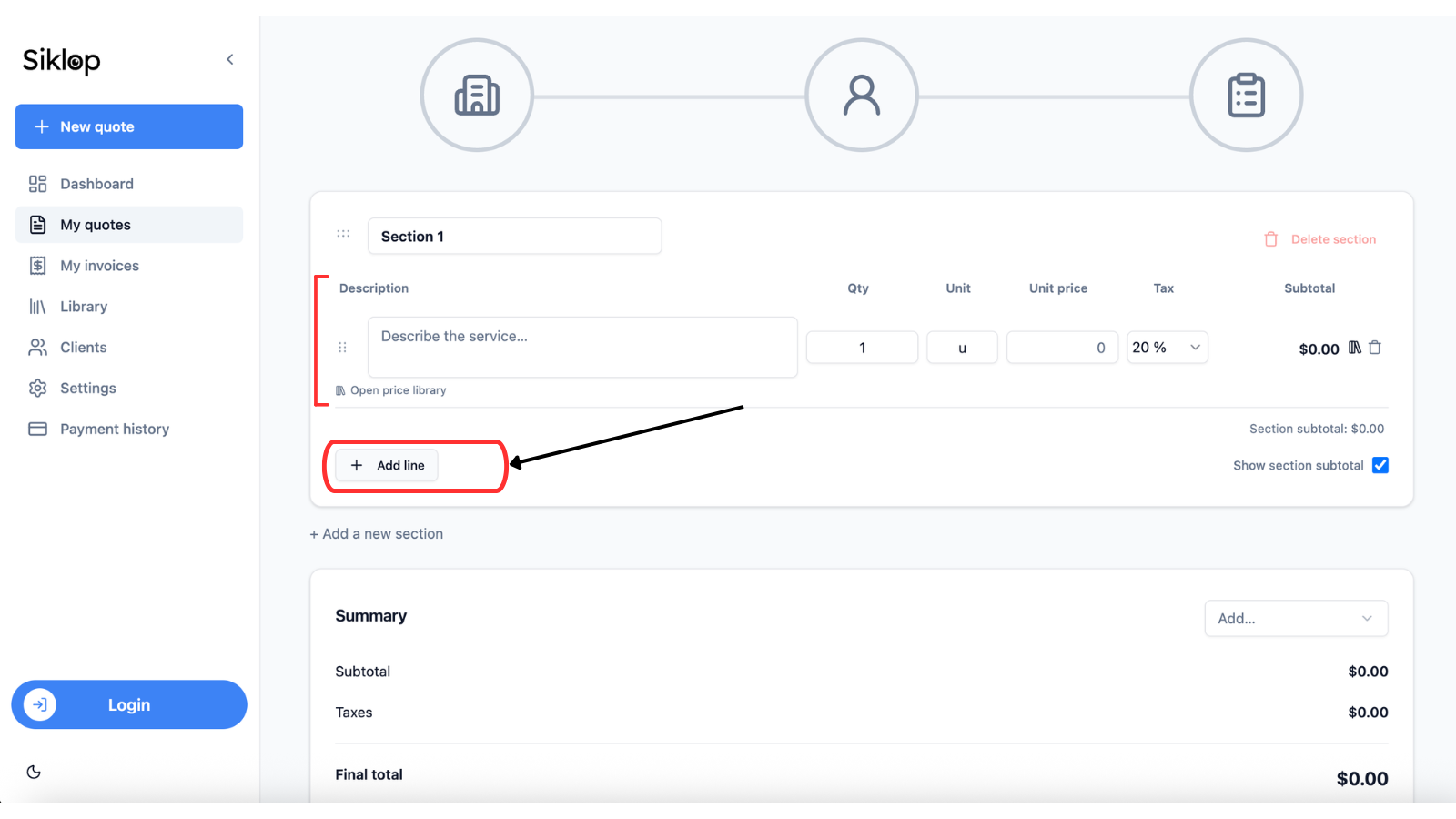
Within each section, you can add as many line items as necessary to describe the products, materials, or services included in your quote.
For each line item, enter a description, unit, quantity, unit price, and the applicable tax rate. Siklop automatically performs all calculations to help you save time and avoid pricing errors.
Line items can be reorganized at any time using drag and drop. You can also move them from one section to another or delete them when they are no longer needed.
Use Additional Features
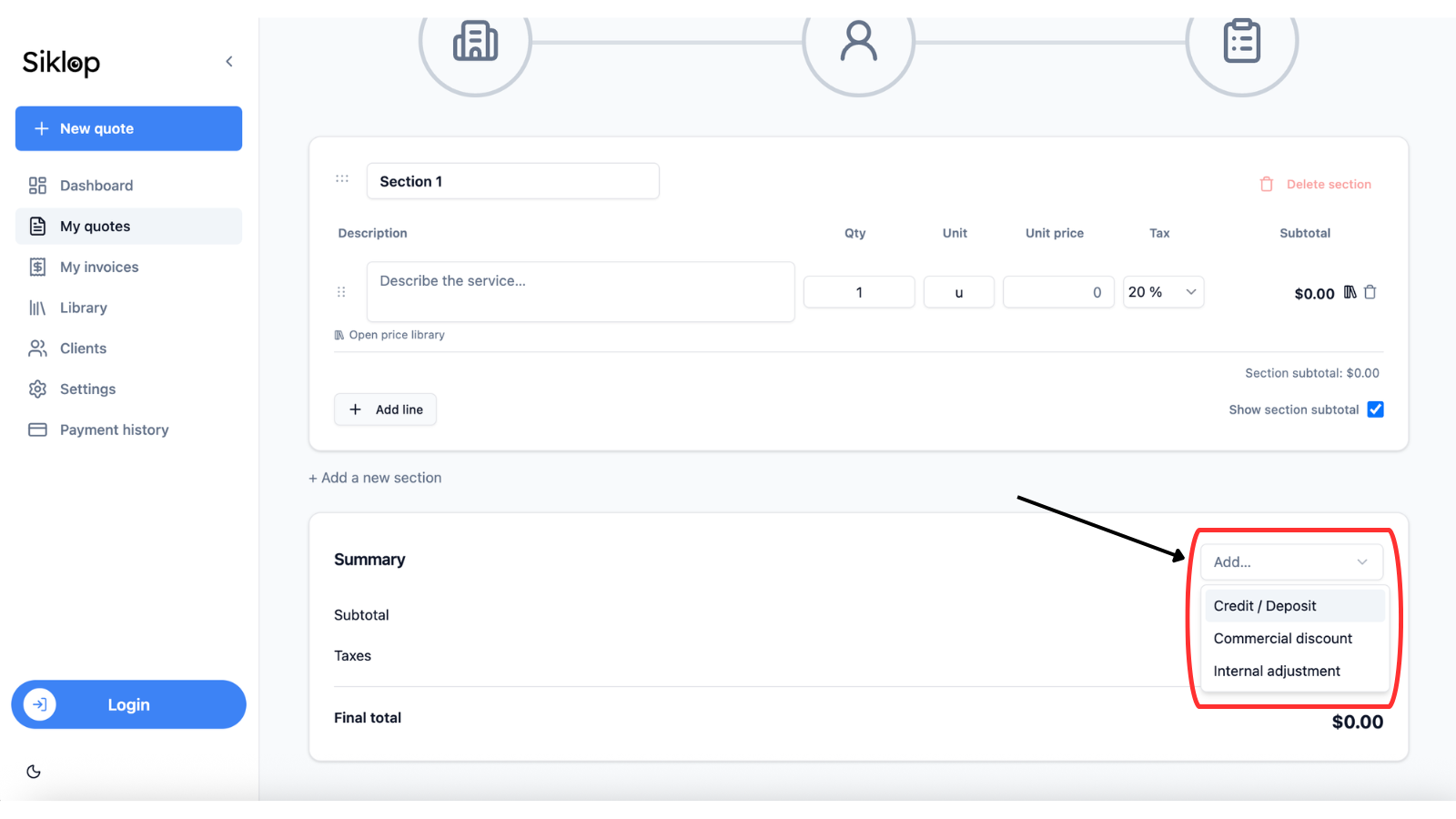
The summary section located at the bottom of the quote editor allows you to add several options to adapt your document to different situations. To access these features, simply click the Add... button.
The Credit / Deposit option allows you to indicate that part of the service has already been paid by your client. Siklop automatically deducts the amount entered and calculates the remaining balance due. This information will appear on the final quote.
The Commercial Discount option allows you to apply a discount to the entire quote, for example as a commercial gesture for your client. The discount is displayed on the quote so that your client can clearly identify the reduction that has been applied.
The Internal Adjustment option allows you to automatically increase or decrease the prices in the quote by applying either a fixed amount or a percentage. Unlike a commercial discount, this adjustment is completely invisible on the final quote. Your client will not see either the amount or the percentage applied. The increase or decrease is automatically distributed proportionally across all line items in the quote. Siklop recalculates each price to maintain consistency between the different items and prevent a single line from absorbing the entire adjustment. This feature is particularly useful for adjusting your margin or reflecting a cost variation across the entire document without manually editing each line.
Review the Quote Summary
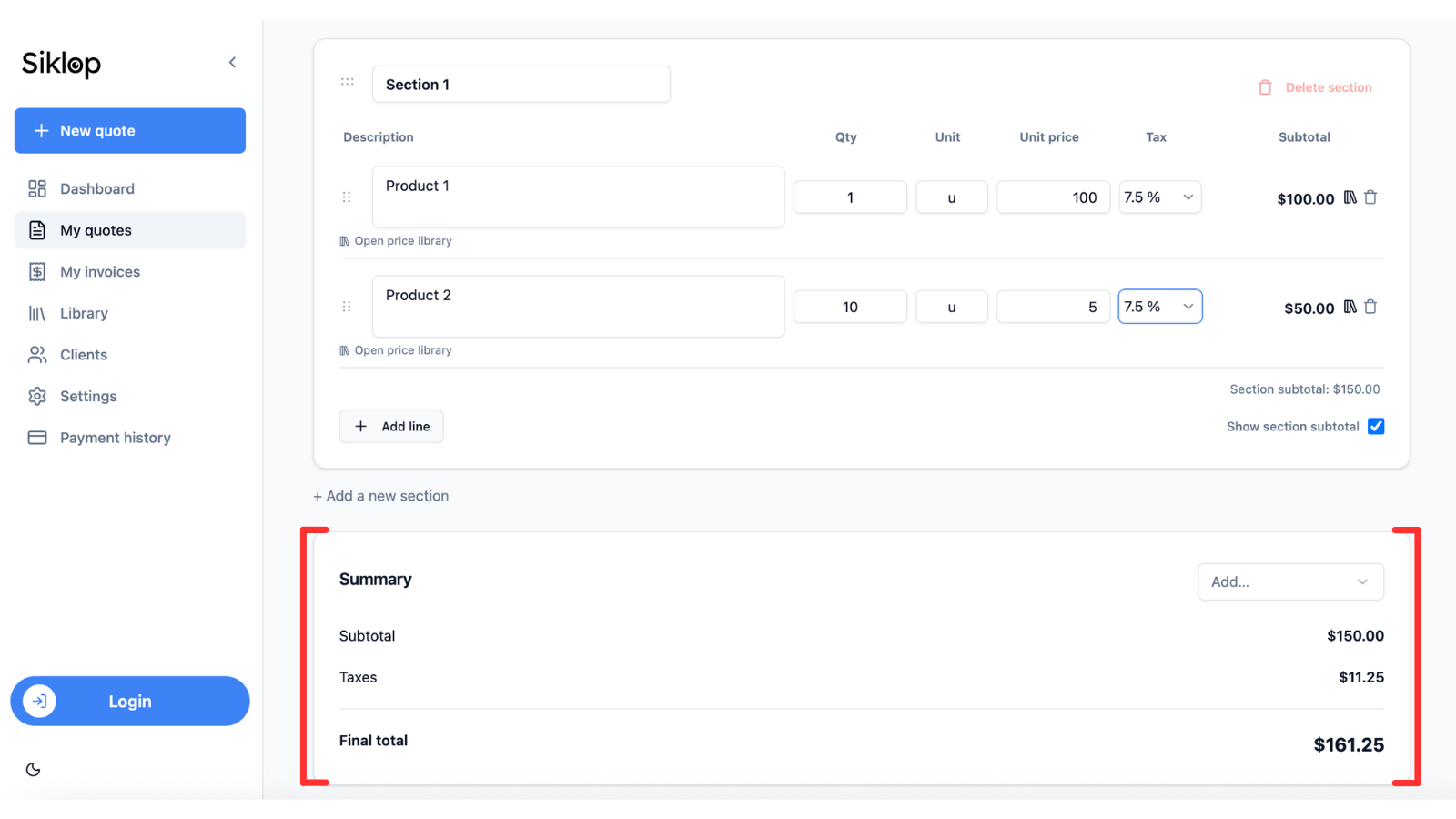
The summary section brings together all the amounts included in your quote. It displays the subtotal, tax breakdown, and final total. All calculations are performed automatically by Siklop and are updated instantly whenever you modify the document, even when multiple tax rates are used within the same quote.
Customize Your Quote
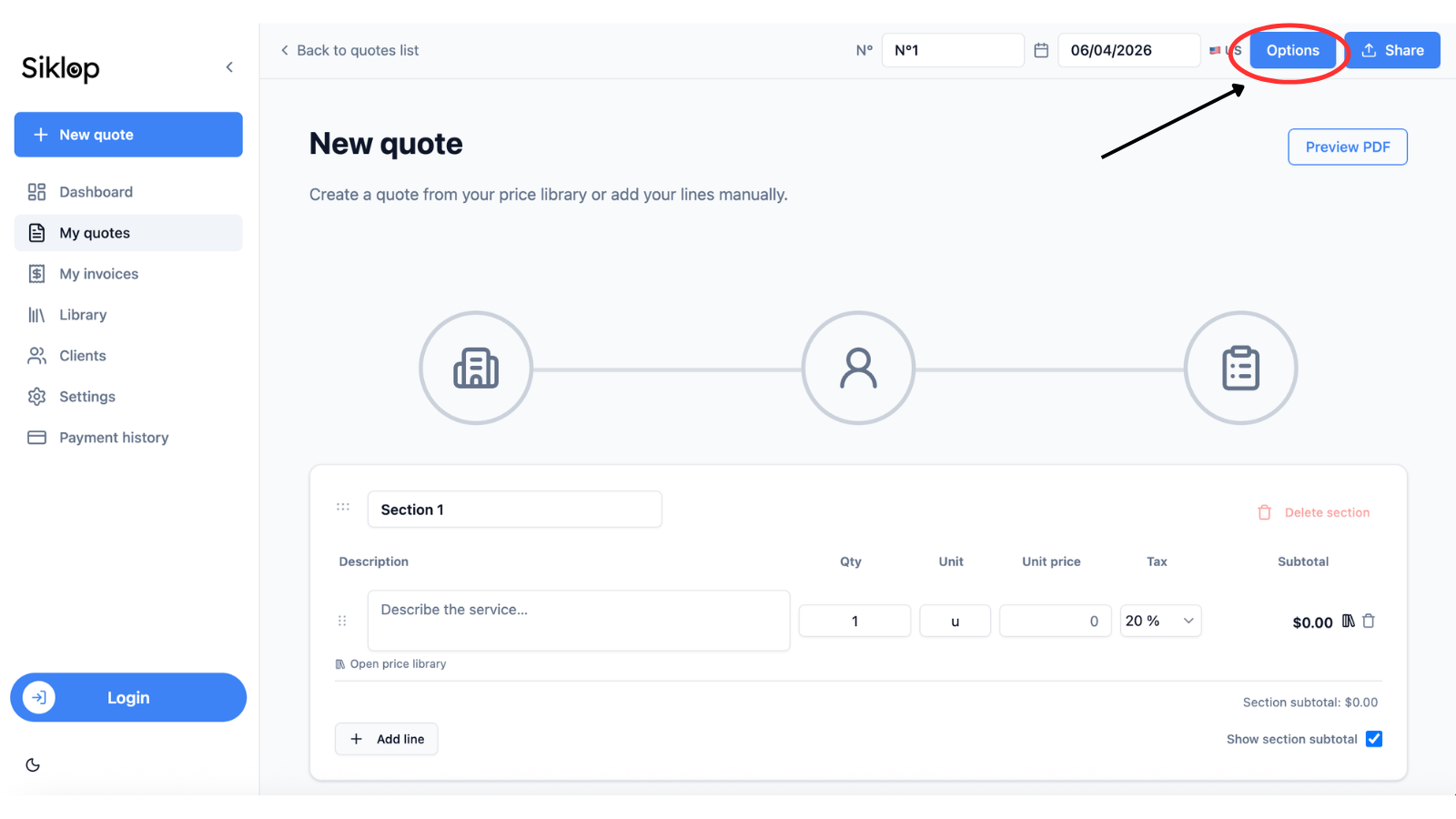
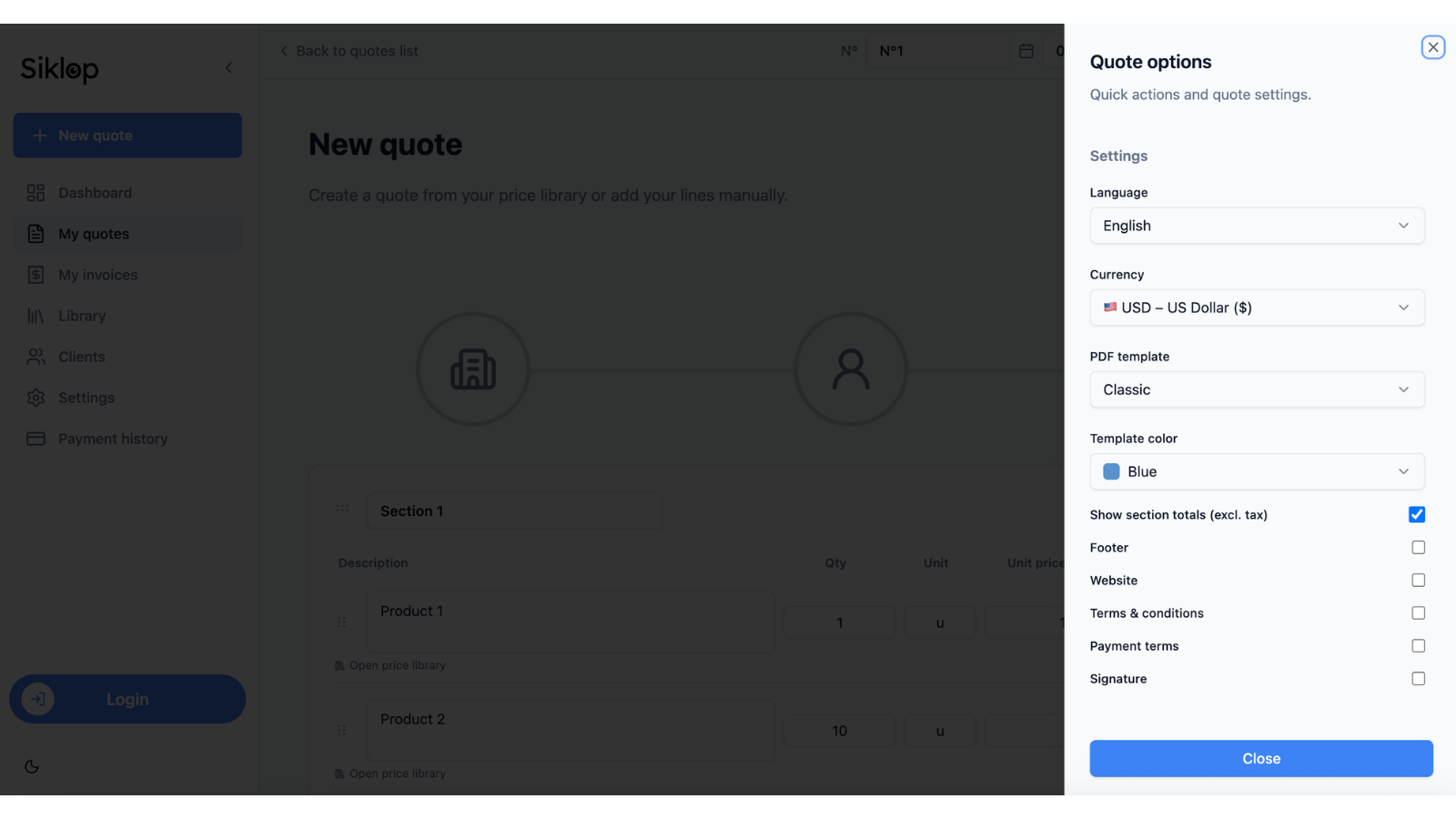
To access customization options, click the Options button located in the top-right corner of the quote editor. A panel will open on the side of the screen, allowing you to quickly modify the main settings of your document.
You can choose the quote language, the currency, the PDF template, and the primary color of your document to match your business needs or your company's visual identity.
This panel also allows you to show or hide specific information on the final quote, such as section subtotals, the footer, your website, terms and conditions, payment terms, or the area reserved for the client's signature. Some of these elements must first be configured in the Settings section before they can be displayed on your quotes.
Preview Your Quote
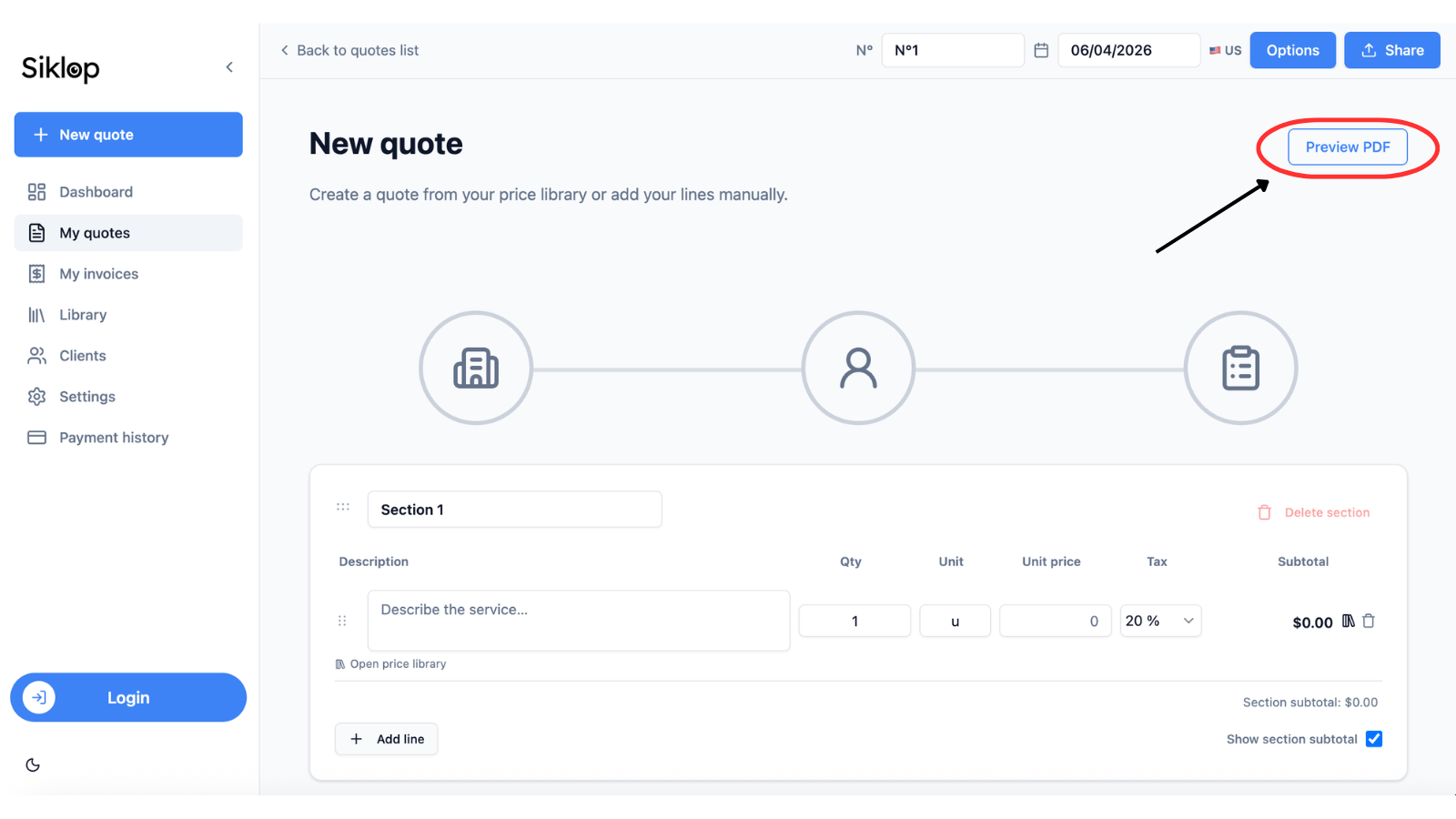
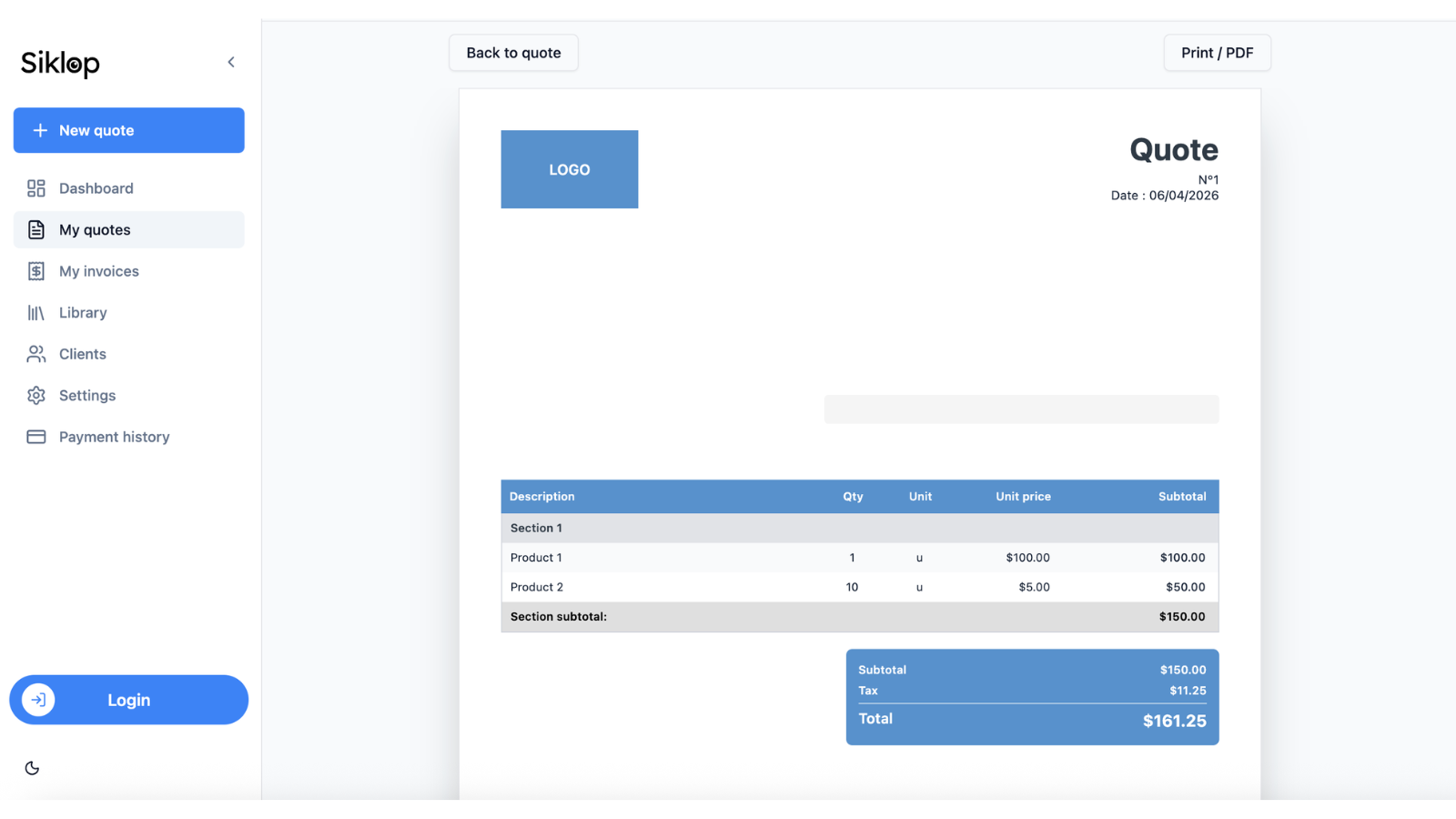
At any time while creating your quote, you can click the Preview PDF button to display the final version of your document. This preview allows you to see exactly what your client will receive before sending the quote.
It is the perfect opportunity to review the layout, entered information, pricing, colors, and all the options displayed on the document. You can return to the quote editor at any time, make changes, and instantly generate a new preview.
Send, Download, or Print Your Quote
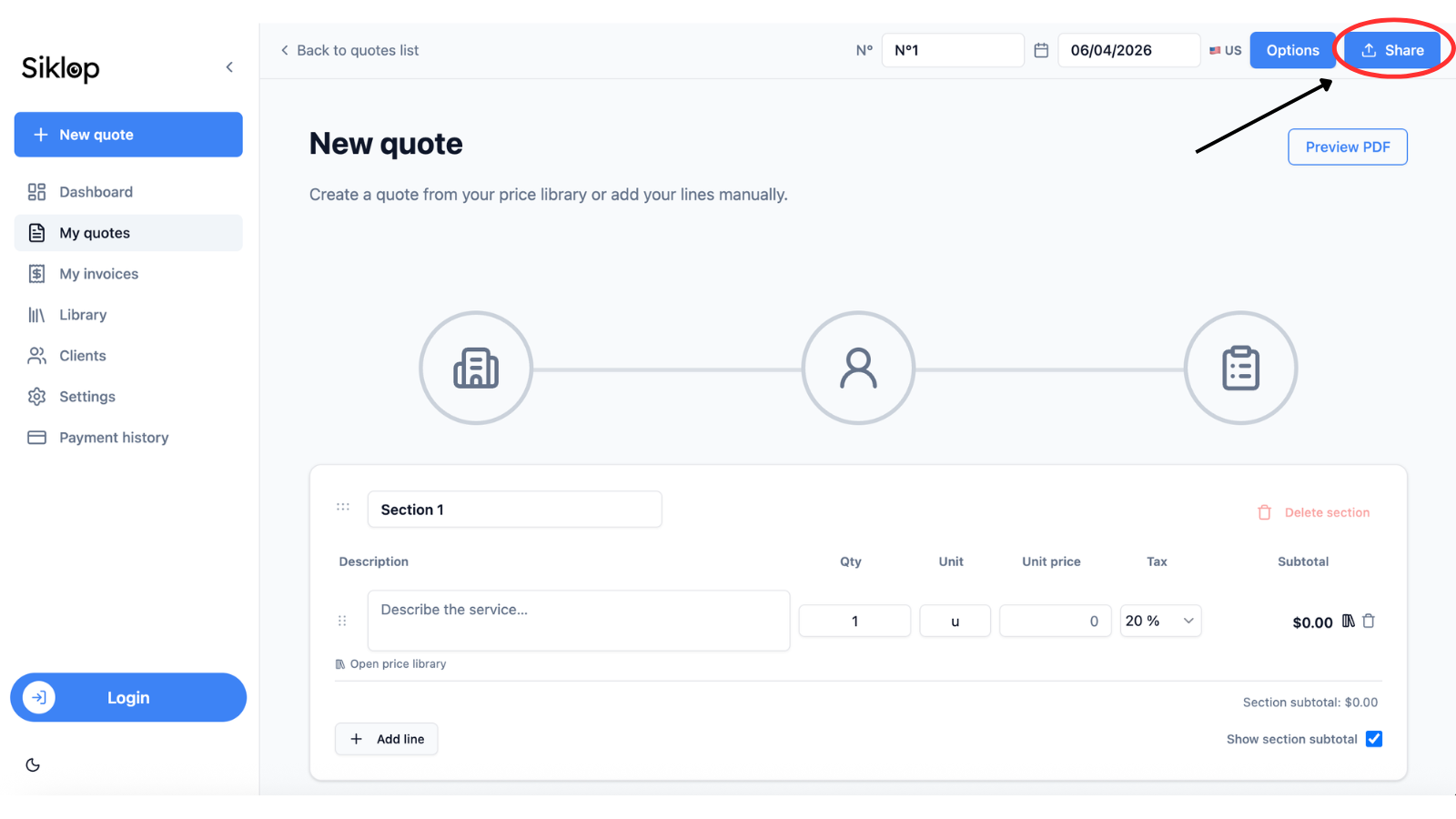
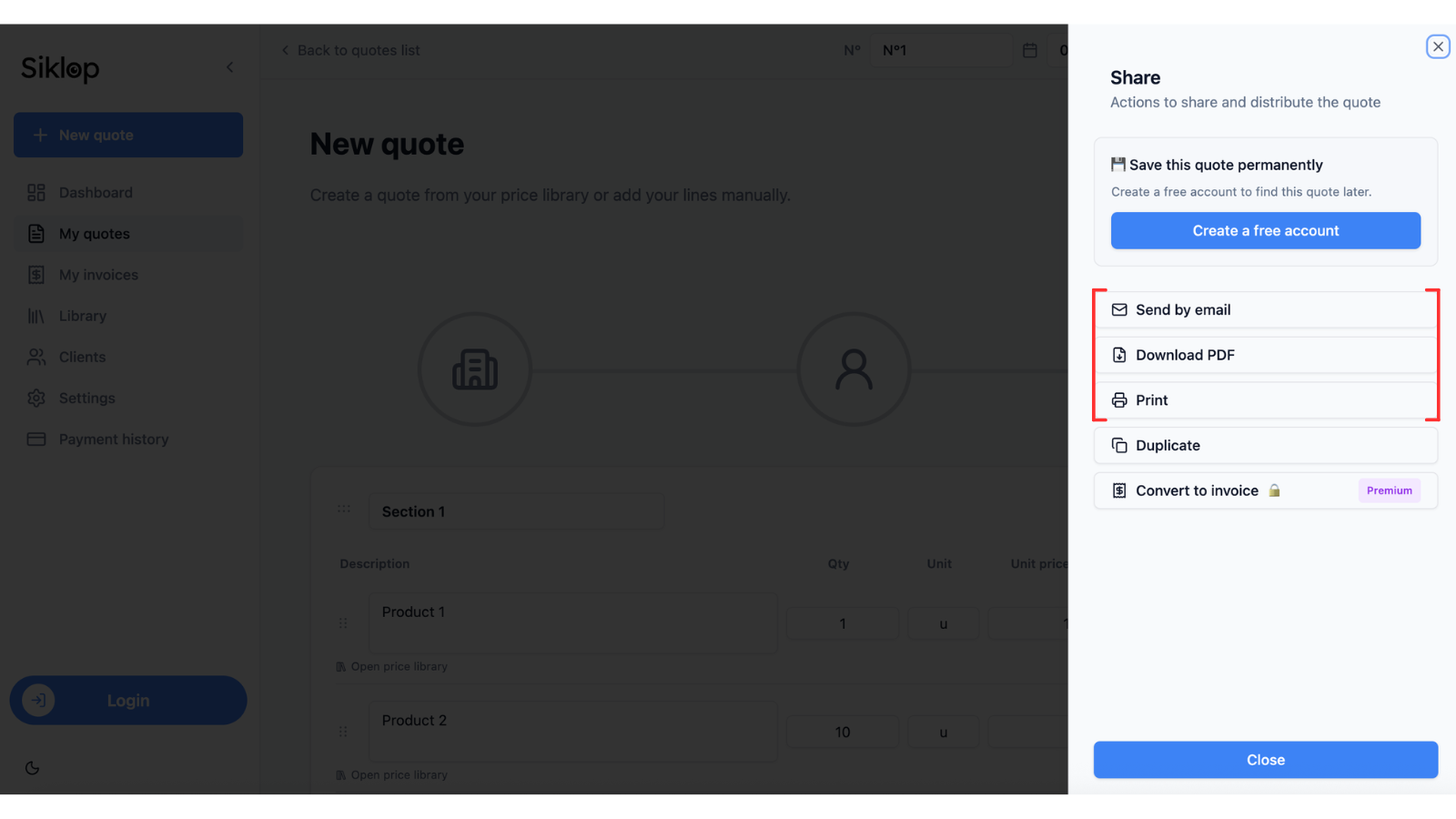
Once your quote is complete, click the Share button located in the top-right corner of the quote editor. A panel will open, giving you access to the different options available for sharing your document.
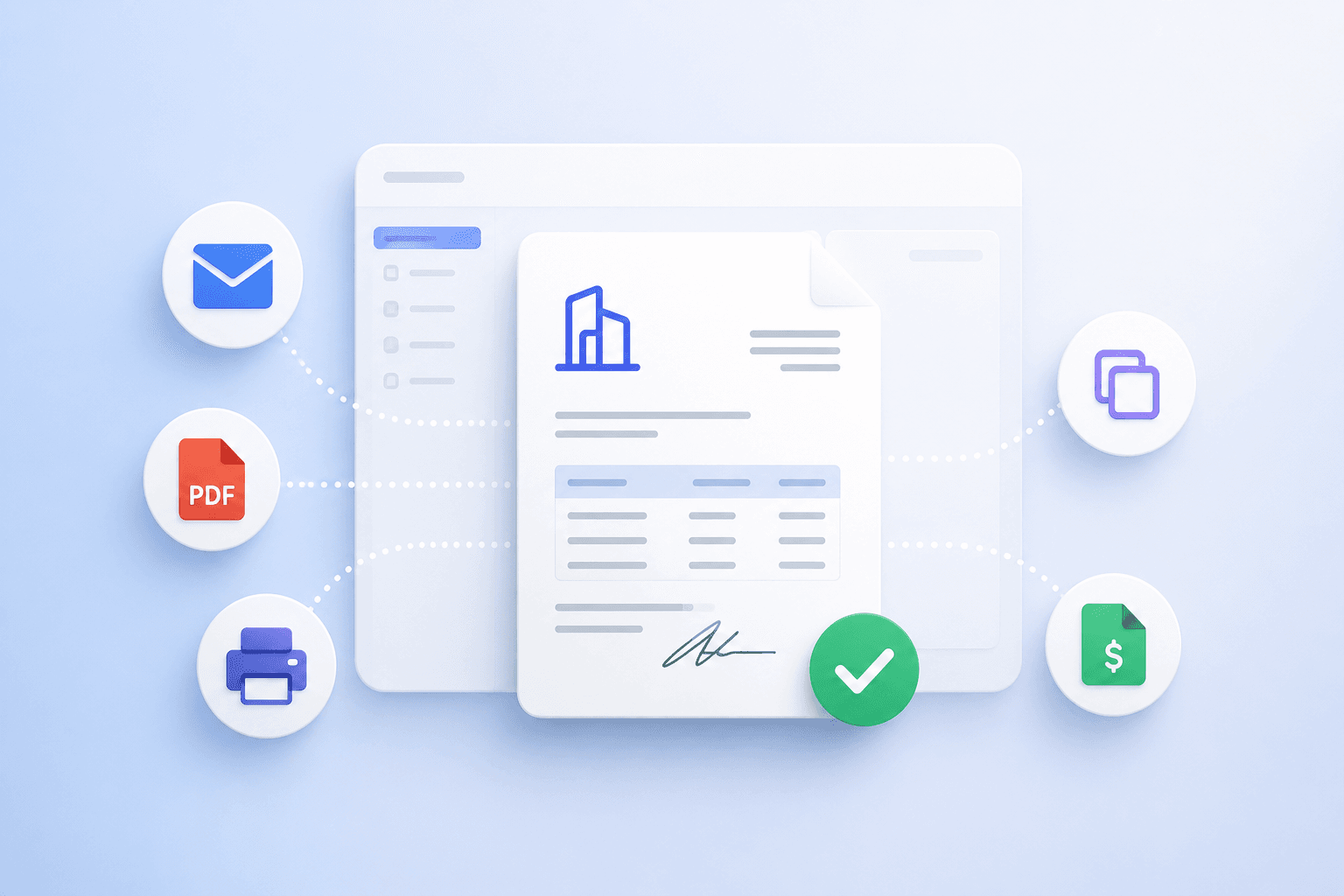
You can send your quote directly to your client by email*, download it as a PDF, or print it. All of these actions use the final version of the quote exactly as it appears in the PDF preview.
For logged-in users, this panel also provides access to additional features such as quote duplication or quote-to-invoice conversion, depending on your subscription plan.
* To use advanced features such as electronic signature, integrated online payment, or automatic reminders, choose Send by email, then select Optimized send. If you only want to send the quote without integrated payment, choose Classic send.
FAQ
Can I create a quote for free with Siklop?
Yes. Siklop allows you to create a quote for free directly from your browser, with no installation or complex setup required. You can enter your company and client information, add products or services, customize your document, and generate a professional quote in just a few minutes.
The free version also allows you to send quotes by email, download them as PDF files, print them, or share them with your clients. You can even offer online payment directly from your quote to simplify the collection of deposits or full payments.
Siklop is suitable for contractors, freelancers, consultants, self-employed professionals, and small businesses looking to create professional quotes quickly without investing in complicated quoting software.
Unlike many quote software solutions, you can start creating your document immediately without mandatory registration. This makes it possible to create your first quote within minutes while still benefiting from the essential features needed to manage your business professionally.
Can I edit a quote after it has been created?
Yes. As long as a quote has not been accepted by your client, you can edit it at any time. You can add or remove line items, change quantities, prices, tax rates, client information, or customize the appearance of the document.
All changes are automatically applied and totals are recalculated in real time. You can also preview the document again before sending it to ensure everything looks correct.
For users with a Siklop account, quotes are saved and remain accessible from your workspace. This allows you to easily find, edit, duplicate, and reuse quotes to save time when preparing future proposals.
Can I use multiple tax rates on the same quote?
Yes. Siklop allows you to use multiple tax rates within the same quote. Each line item can have its own tax rate, which is particularly useful when billing different types of products or services subject to different tax rules.
The software automatically calculates the subtotal, the tax amount for each rate, and the final total. No manual calculations are required, even when several tax rates are used within the same quote.
You can also create and save your own custom tax rates for future use. This feature is especially useful for businesses working internationally or operating in regions with specific tax requirements.
Can I send a quote as a PDF?
Yes. Siklop allows you to download your quotes as PDF files, print them, or send them directly to your clients by email. The PDF is automatically generated from your quote and includes all the information, services, pricing, and options configured in your document.
Before sending your quote, you can preview the final version to review the layout and ensure that all information is correct. This feature is particularly useful for contractors, freelancers, consultants, self-employed professionals, and small businesses that need to send professional quotes quickly.
For users with a Siklop account, Optimized send also provides advanced features such as electronic signatures, integrated online payments, and automatic reminders, helping you get quotes approved and paid faster.
Can I collect an electronic signature on a quote?
Yes. To collect an electronic signature with Siklop, simply choose Send by email when sharing your quote.
Two sending methods are available:
- Classic send: electronic signature is either included in your subscription plan or available as an optional add-on, depending on your plan.
- Optimized send: this option allows your client to view the quote online, sign it electronically, and pay either the full amount or the requested deposit directly. Electronic signature is automatically included at no additional cost, even for users on the Free plan.
This solution simplifies quote approval, accelerates payments, and centralizes the entire signing and payment process in one place.
Can I request a deposit from my client?
Yes. Siklop allows you to request a deposit from your clients using Optimized send. During the sending process, you can define the deposit amount that your client must pay in order to approve the quote.
Once the quote has been signed and the deposit has been paid, the payment is automatically recorded and visible in your Siklop workspace. This feature is particularly useful for contractors, construction companies, freelancers, and service providers who want to secure a project before work begins.
You can also use the Credit / Deposit feature directly within the quote to indicate that a deposit has already been paid by your client. Siklop will automatically deduct the amount and calculate the remaining balance due.