
Send a quote with Classic Send
Siklop allows you to send a quote to a client in just a few clicks using Classic Send.
This method is designed to simplify the way you send quotes while saving time. Instead of generating a PDF, downloading it, and manually attaching it to an email, Siklop automatically creates a secure link to your quote and prepares the email for you.
Classic Send also allows you to track the progress of your quote directly from Siklop. You can see whether the quote has been sent, viewed, signed, or accepted, which is generally not possible when sending a PDF manually from your computer.
The email itself is not sent through Siklop's servers. Instead, it is sent directly from your own email account (Gmail, Outlook, or another email provider), giving you full control over the message and allowing you to personalize your communication with clients.
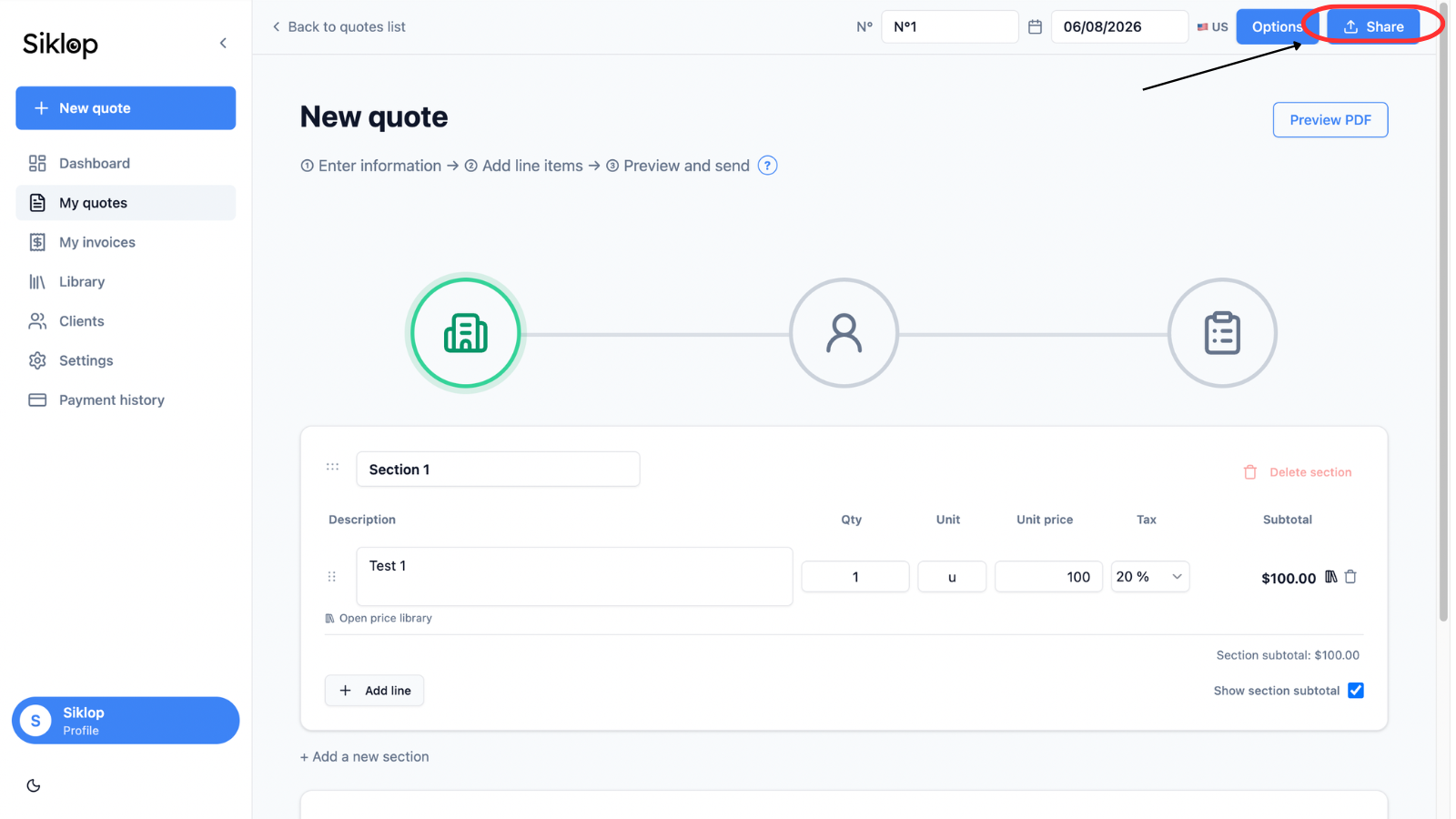
To get started, open your quote and click Share.
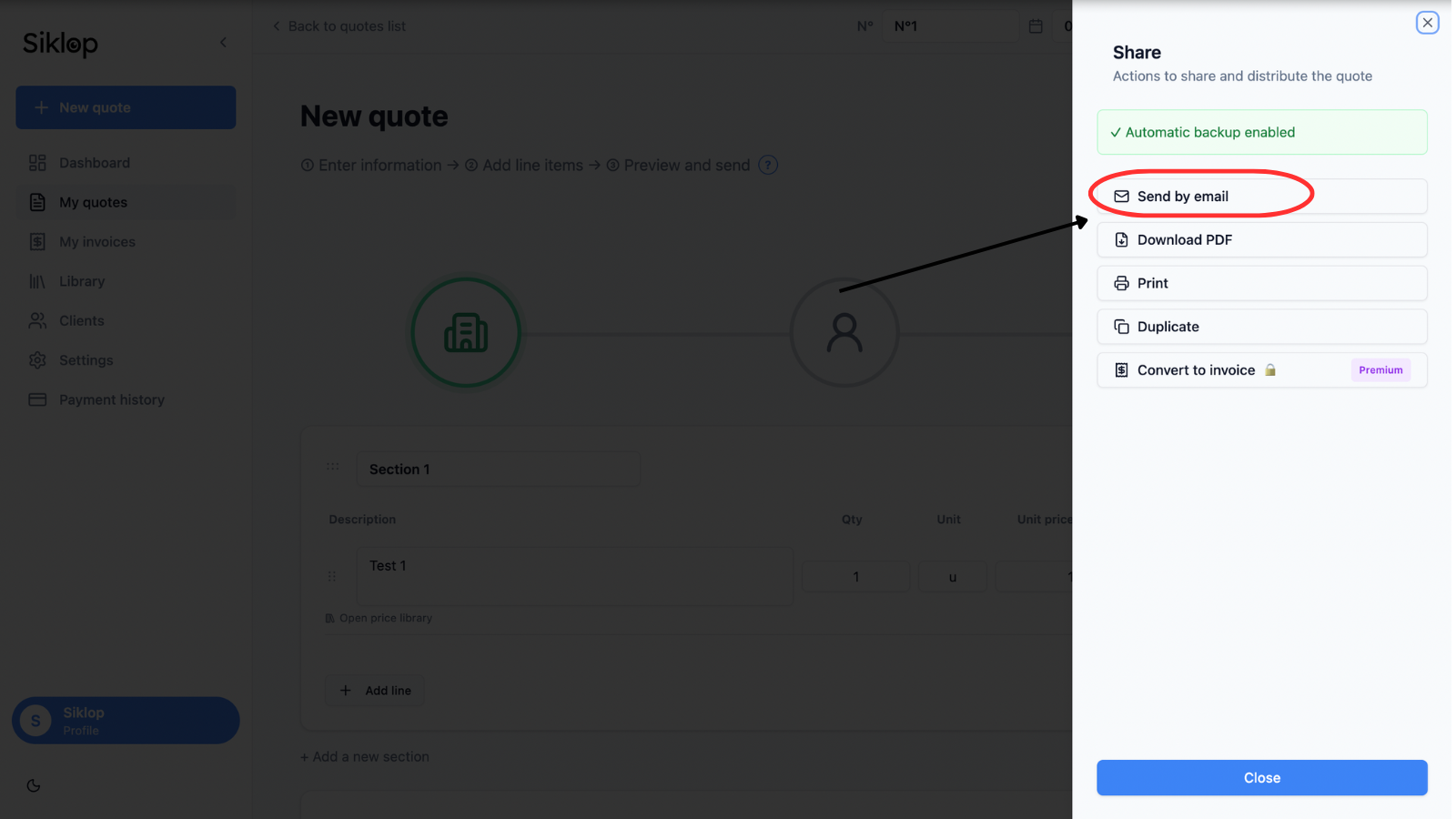
Then click Send by email to access the quote sending options.
Choose Classic Send
Siklop offers several delivery methods to match different business needs.
To send your quote without integrated online payments, simply select Classic Send.
This method allows your client to access the quote through a secure link while keeping the sending process simple, fast, and easy to use.
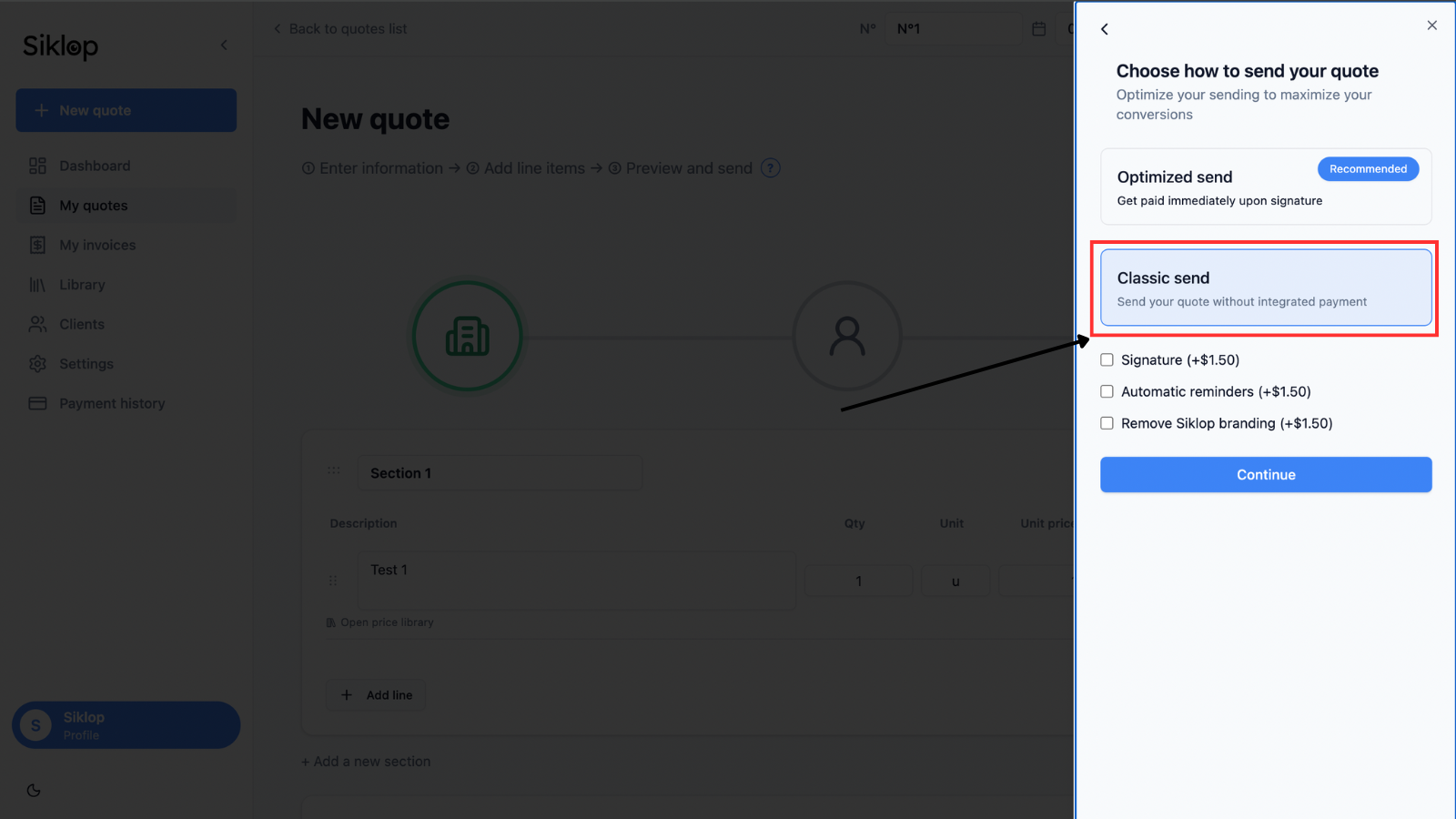
Add options to your quote
Classic Send can be used completely free of charge without purchasing any additional options. Simply click Continue to proceed with sending your quote.
A Siklop user account is still required so the document can be saved and its status (sent, viewed, signed, or accepted) can be tracked properly.
Depending on your Siklop plan, some features may already be included in your subscription.
For example, e-signature, automatic reminders, and the removal of the Siklop mention may be available at no additional cost depending on the plan you use.
If an option is not included in your plan, it can also be purchased individually when sending the quote. The price of each option is displayed directly in the interface before the sending process is completed.
This gives you the flexibility to customize each quote according to your needs without necessarily upgrading your subscription.
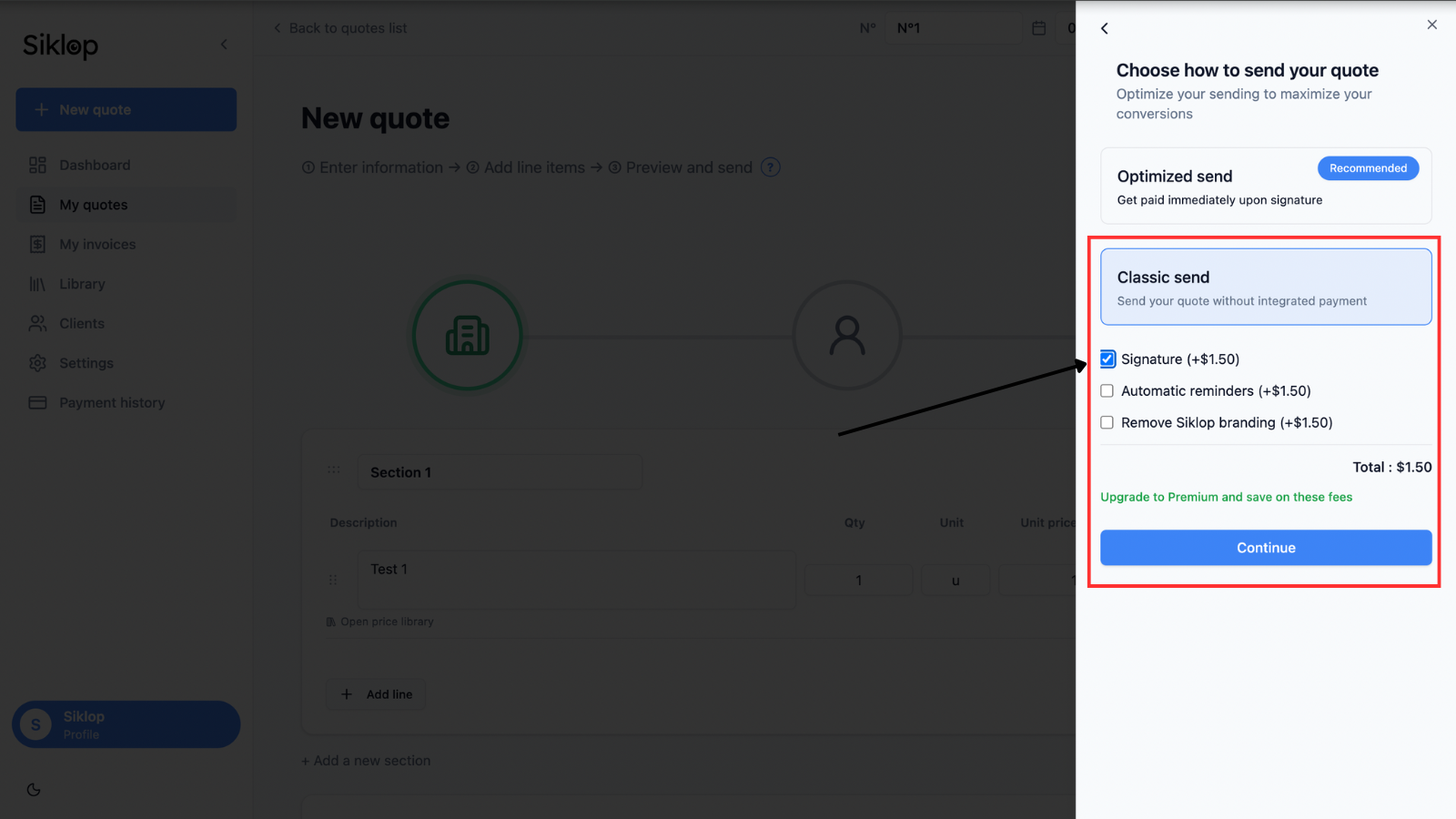
Confirm your selected options
When paid options are added to the document, Siklop displays a summary before proceeding.
Simply accept the terms and conditions, then click Pay and send.
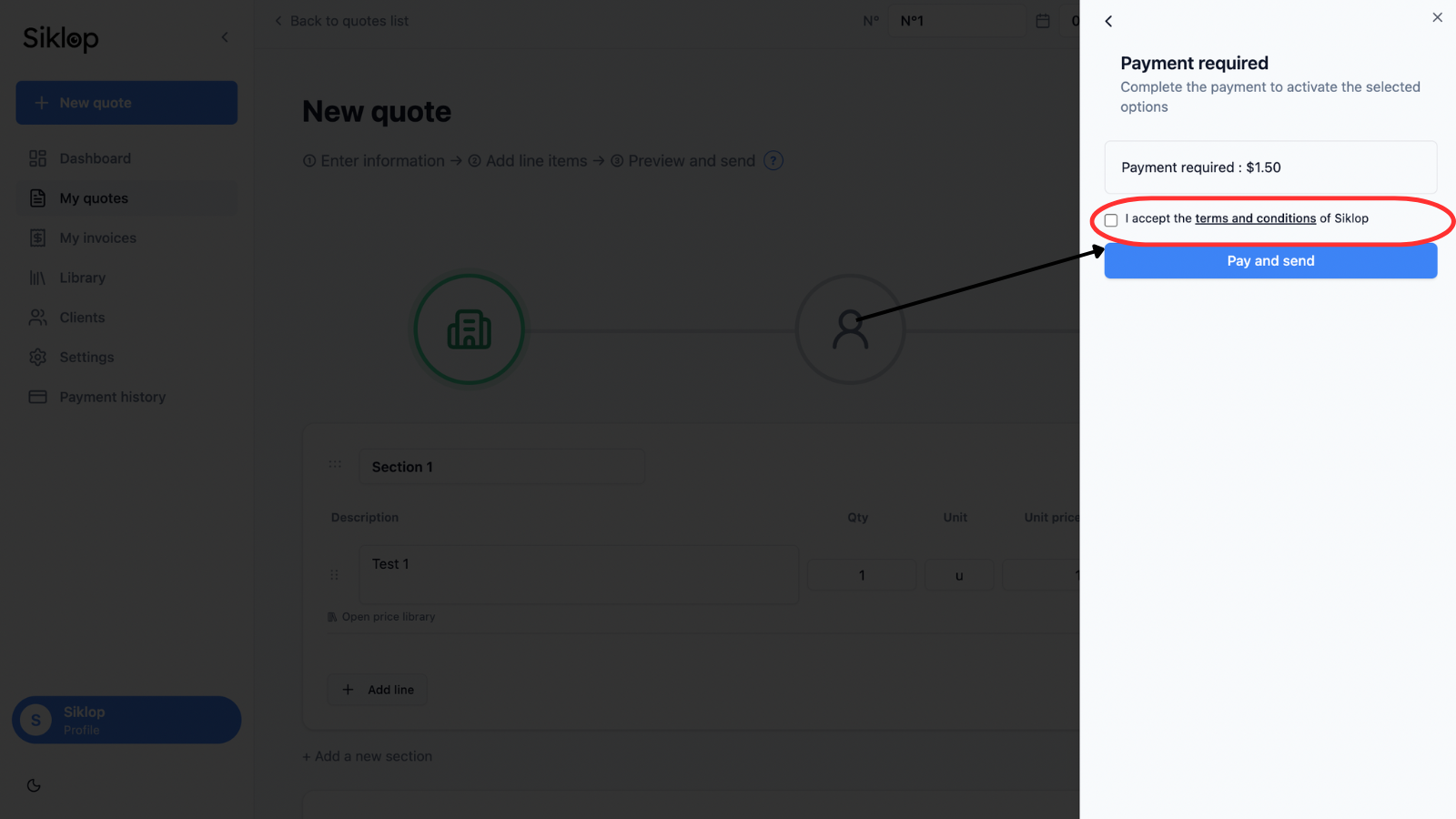
Pay for additional options
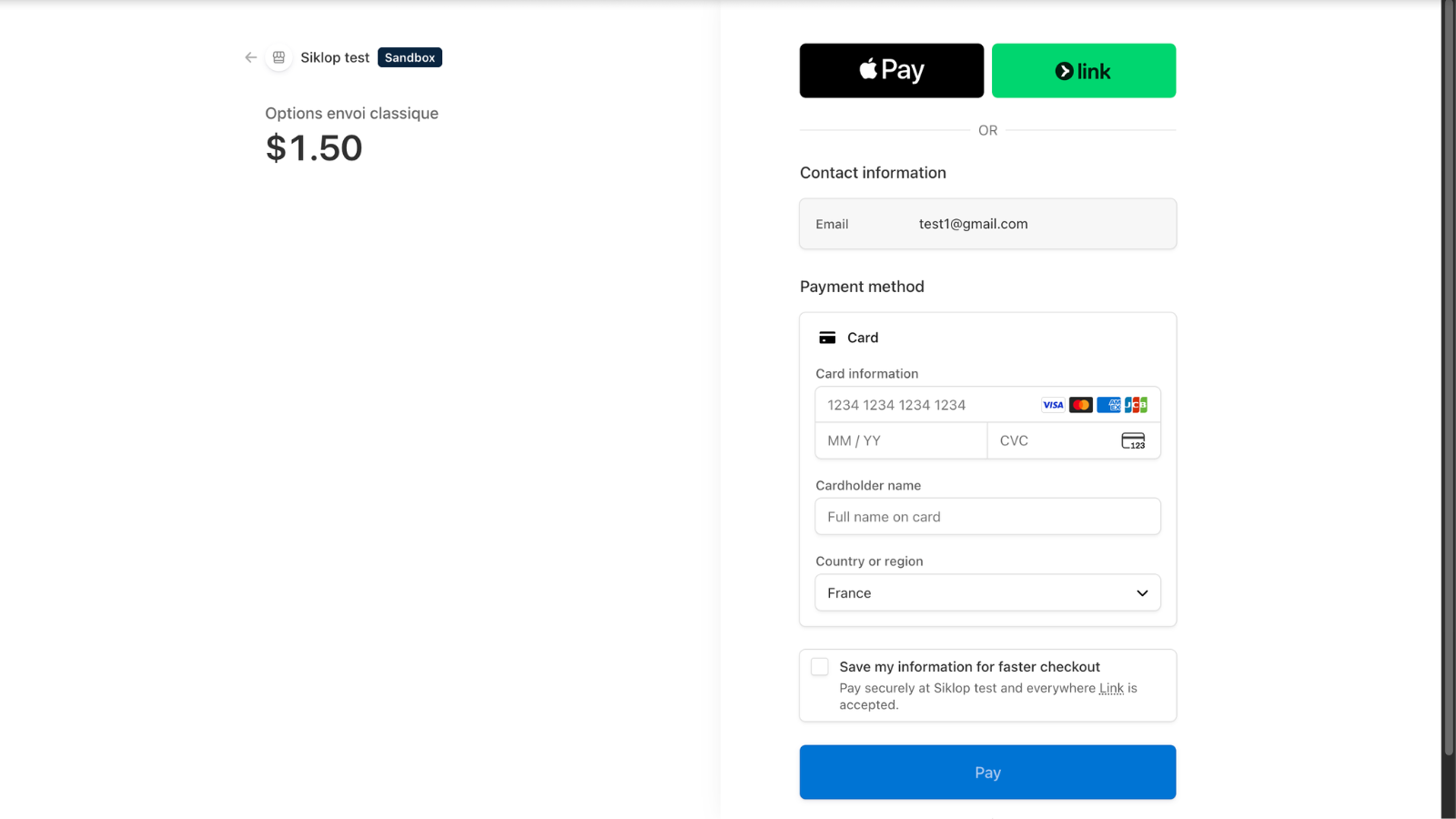
If paid options have been added to your quote, payment is processed securely through Stripe.
The main payment methods are supported, including Visa, Mastercard, American Express, Apple Pay, and many other payment solutions depending on your country and device.
Prepare the email
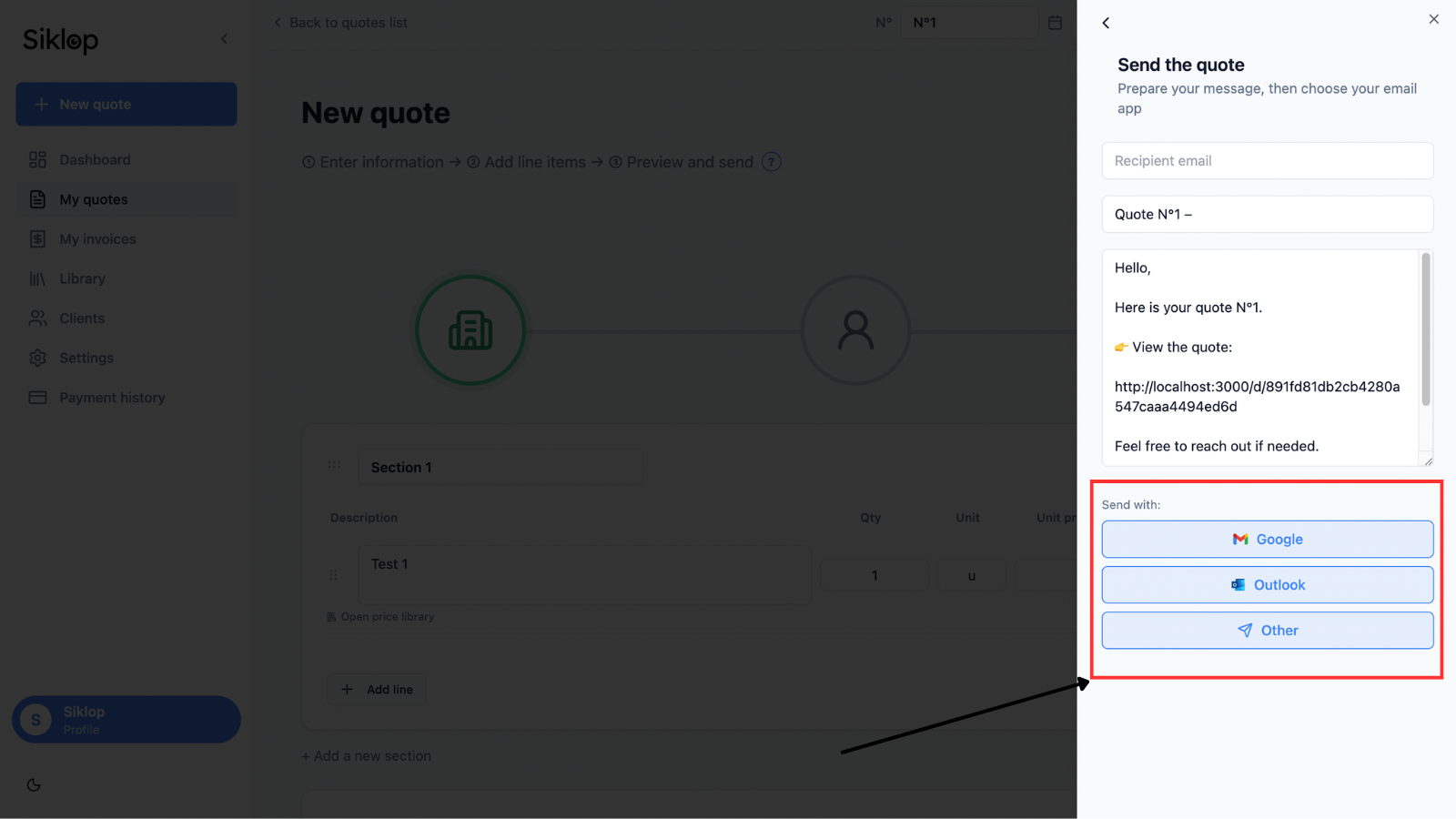
Once your sending options have been selected, Siklop automatically generates an email that is ready to send to your client.
You can customize the subject line, edit the message, and choose the email application you want to use.
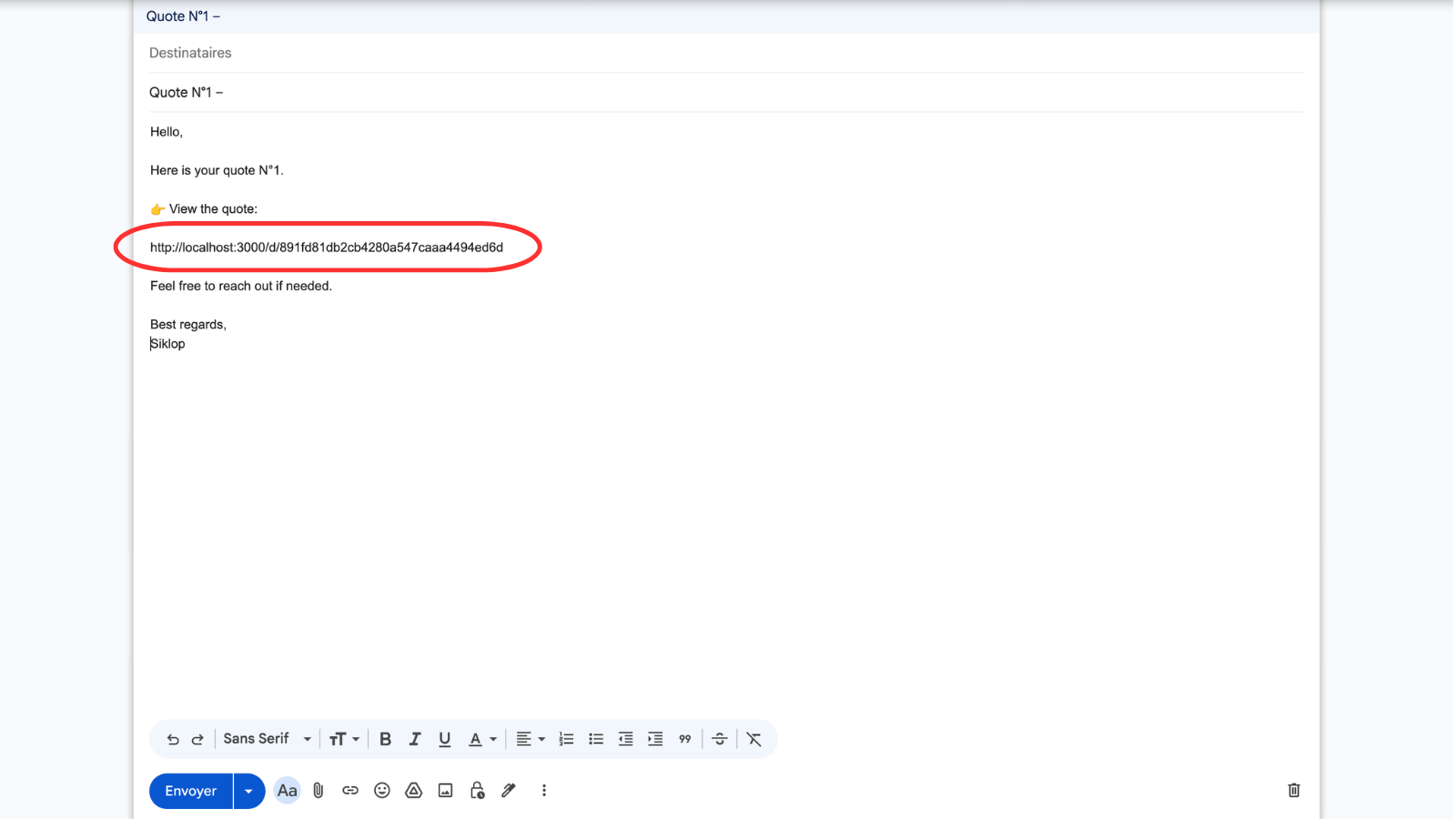
To make the process easier, Siklop provides shortcuts for quickly connecting Gmail, Outlook, and other compatible email services. The message is automatically prepared with the secure link that allows your client to view the quote.
If your email provider is not directly supported or if you prefer another method, you can simply copy the generated message and quote link, then send them manually using the email application of your choice.
Share the quote link
The quote is shared using a unique secure link automatically generated by Siklop.
Your client can open this link from any computer, tablet, or smartphone to view the document online without creating an account or installing any software.
This method makes sharing a quote much easier than sending a PDF attachment while still giving you access to Siklop's tracking features.
Sending confirmation
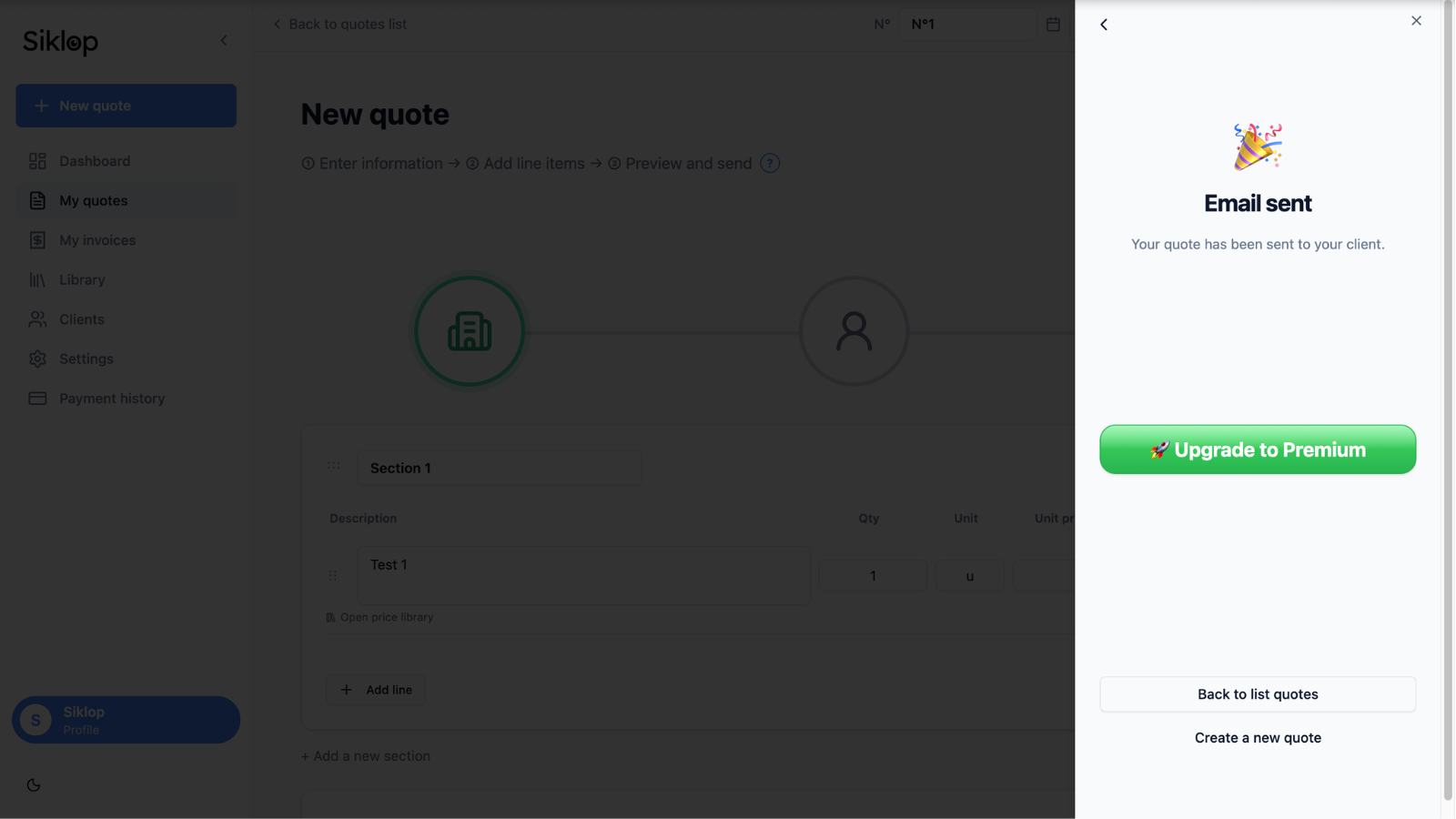
Once the email has been sent, Siklop displays a confirmation message indicating that the quote has been successfully shared with your client.
You can then return to your quote list, continue tracking the document, or create a new quote if needed.
Track the quote status
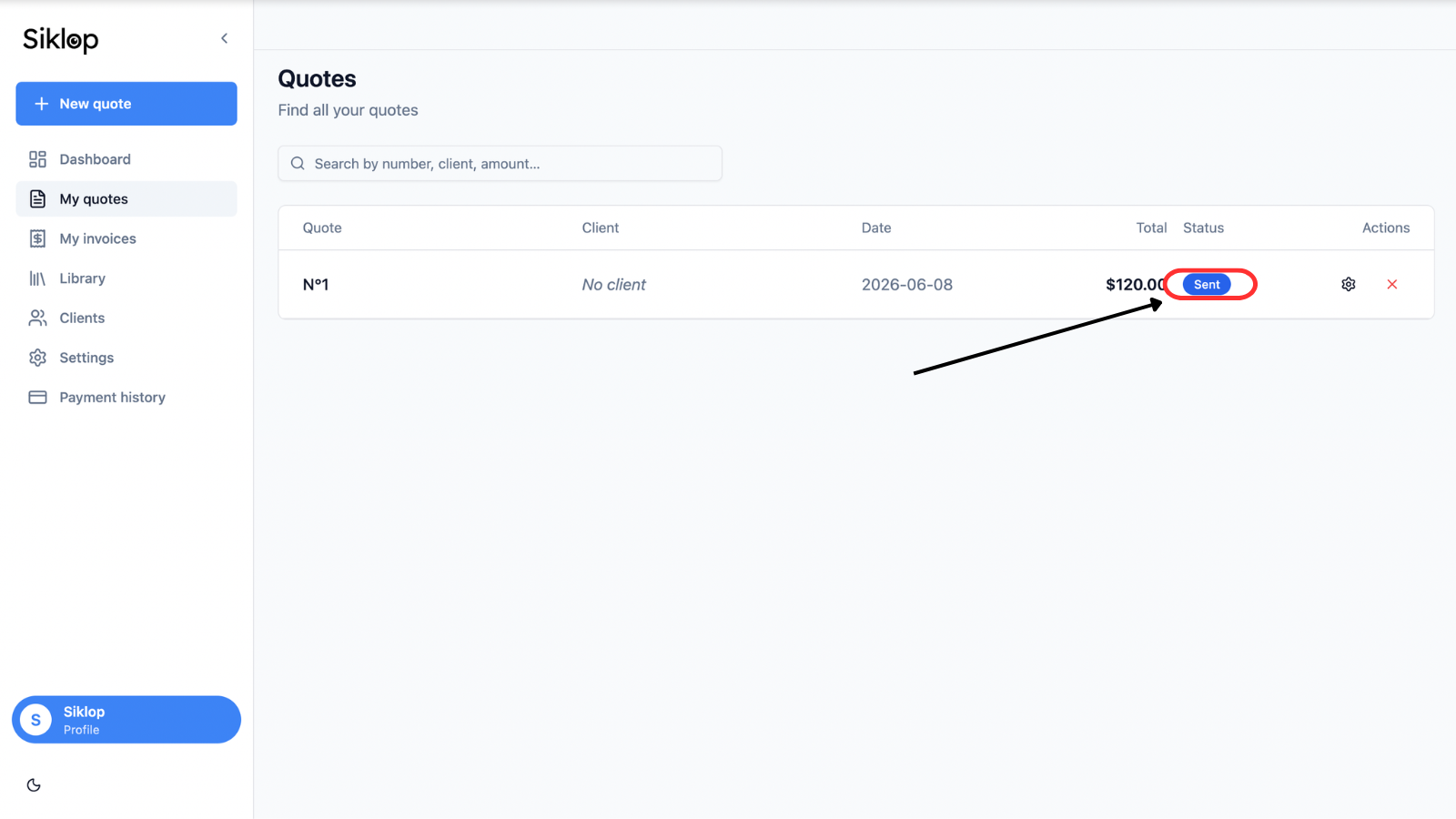
After the quote has been sent, the document status is automatically updated within your Siklop account.
Thanks to real-time tracking, you can monitor the progress of your quote without manually following up with your client. Siklop allows you to see whether the quote has been viewed, signed, accepted, or declined.
The displayed status is updated automatically, giving you better visibility into the progress of your opportunities and helping you prioritize your follow-ups more effectively.
FAQ
Does my client need to create an account to view the quote?
No. Your client can view the quote directly from the link received by email without creating a Siklop account. The document can be accessed from a computer, tablet, or smartphone. All they need to do is click the link included in the email to immediately view the quote.
This helps simplify the client experience and removes unnecessary steps before accessing the document.
Can I send a quote with Classic Send for free?
Yes. Classic Send is available for free with a Siklop account. No additional options are required to send a quote to your client. You simply need to create a free account so the document can be saved and tracked after it has been sent.
Features such as electronic signatures, automatic reminders, and removing the Siklop mention may be included in your subscription plan or purchased individually when sending the quote.
Can I add an e-signature to my quote?
Yes. Classic Send is fully compatible with Siklop's e-signature feature. When this option is enabled, your client can sign the quote online directly from the link received by email. The signature is automatically recorded on the document, making it easier to track quote approvals and maintain a record of the signature.
The availability of this feature depends on your subscription plan or the options selected when sending the quote.
Can I enable automatic reminders?
Yes. Siklop allows you to add automatic reminders to your quotes. When this feature is enabled, reminder emails are automatically sent to your client, encouraging them to view, sign, or accept the document without any manual action on your part.
Automatic reminders can help improve quote response rates while reducing the time spent on follow-ups. This feature may be included in your subscription plan or added individually when sending the quote.
How can I tell if my client has viewed the quote?
Siklop provides real-time tracking of document activity. After sending a quote, you can check its status directly from your account and follow its progress based on the actions taken by your client.
Depending on the options enabled on the document, you can see whether the quote has been sent, viewed, signed, accepted, or declined. Statuses are updated automatically, giving you a clear overview of the progress of each opportunity.
This tracking helps you better understand client behavior, identify quotes that may require a follow-up, and prioritize your sales actions more effectively.
What is the difference between Classic Send and Optimized Send?
Classic Send allows you to share a quote using a secure link while keeping all of Siklop's tracking features. Your client can view the document online and, depending on the options enabled, sign it electronically.
Optimized Send includes all of the same features but also adds integrated online payments directly within the quote. This allows your client to pay a deposit or complete a credit card payment as soon as they open the document.
Both methods provide real-time quote tracking, but Optimized Send is particularly useful when you want to secure a deposit, get paid faster, and reduce payment delays.
👉 See also: Optimized Send
Can I edit the message before sending it?
Yes. Before sending, Siklop automatically generates an email that you can customize. You can edit the subject line, modify the message content, and use your own email address, giving you complete control over how you communicate with your clients.
The link that allows your client to access the quote is automatically included in the message. It is important to keep this link unchanged so your client can view the document properly. However, all other parts of the email can be freely customized to match your needs.
This approach allows you to personalize your communication while maintaining secure access to the quote shared through Siklop.
Can I send a quote by SMS or WhatsApp?
Yes. Although Siklop does not currently provide direct SMS or WhatsApp sending, you can still share your quote through these channels. When creating the send request, Siklop automatically generates a secure link that allows your client to view the document. Simply copy this link and paste it into an SMS, a WhatsApp conversation, or any other messaging application.
Your client can then access the quote from a smartphone, tablet, or computer without creating an account or installing any software. This is a convenient solution when you need to send a quote quickly by phone or through an instant messaging app.
Can I send the same quote to multiple people?
Yes. The secure link generated by Siklop can be shared with multiple recipients if needed. This allows you to send the same quote to several contacts within the same company or to anyone involved in the decision-making process.
However, it is recommended to share the document only with the intended recipients in order to protect the confidentiality of the information contained in the quote.