Print a quote or invoice
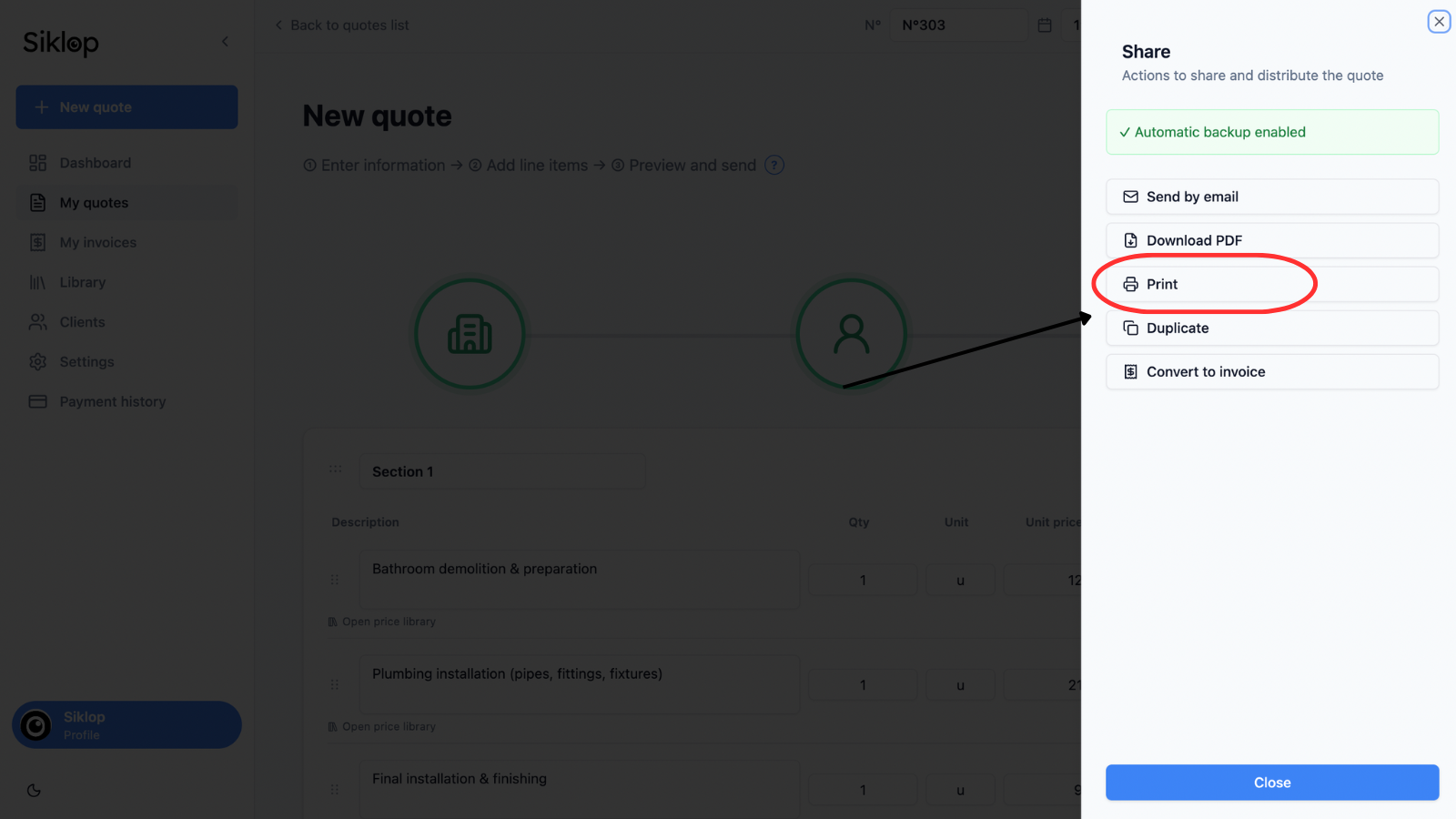
Siklop allows you to print your quotes and invoices directly from the Share menu.
The printing feature is available from both the quote and invoice editors, as well as from the document lists.
To print a document, simply open the quote or invoice you want to print, then click Print from the Share menu.
Preview the document before printing
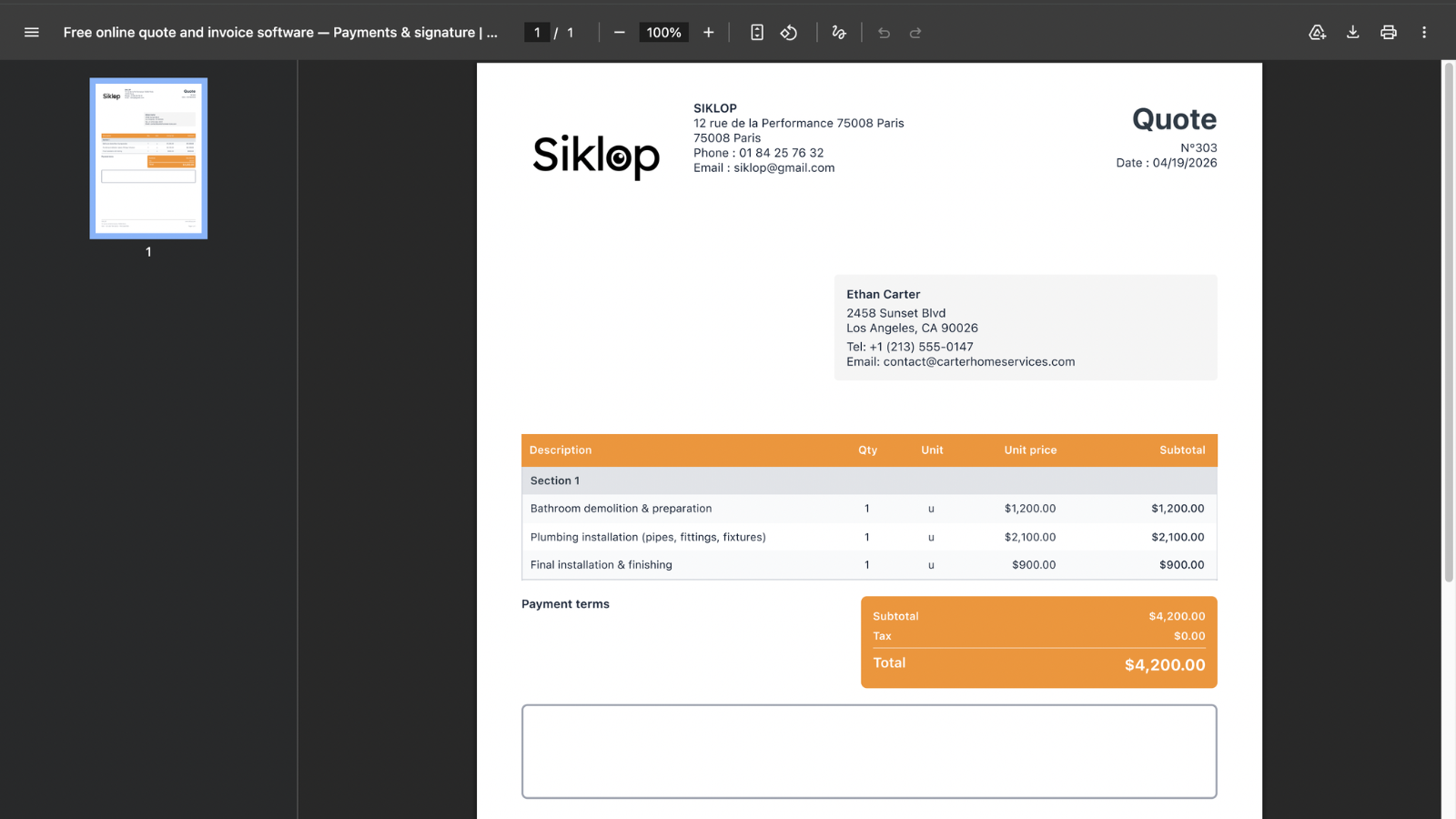
After clicking Print, Siklop automatically generates a print-ready version of your document.
A print preview window then opens, allowing you to review the content, layout, and number of pages before printing.
This step helps ensure that the document looks exactly as expected before printing or saving it as a PDF.
Print the document
From the print preview window, you can start printing directly from your browser.
Depending on your device, you can select the printer to use, the paper size, page orientation, double-sided printing options, and the number of copies to print.
The document layout is automatically optimized to maintain a professional appearance when printed.
Once printed, the document can be handed to a client, used during a business meeting, or kept as part of your paper records.
FAQ
Can I print my document double-sided?
Yes. If your printer supports double-sided printing, you can enable this option directly from the print window displayed by your browser or operating system.
Quotes and invoices generated by Siklop are compatible with the printing options provided by your device, including double-sided printing when available.
This feature is particularly useful for printing your Terms and Conditions on the back of your quotes or invoices, as many businesses do.
To do this, Siklop provides a dedicated feature available under Settings → Legal Texts → Terms and Conditions. You can then choose the placement of your Terms and Conditions and select the Interleaved option so they are automatically included when printing your documents.
Can I print a document without a Siklop account?
Yes. The printing feature is available free of charge and without limitations, even if you use Siklop without creating an account.
Users of the no-signup version can print their quotes directly from their browser without a subscription, account creation, or additional software installation.
This allows you to create professional quotes, print them instantly, and provide paper copies to your clients whenever needed.
Whether you need to prepare for a meeting, hand a printed quote to a client, keep a physical copy for your records, or archive important business documents, printing remains available at any time through Siklop.
Printing quotes is one of the free features included in Siklop's freemium version.
Can I print a document from a smartphone?
Yes. The printing feature is compatible with smartphones, tablets, and computers.
From your phone, you can print a quote or invoice directly to a compatible printer connected via Wi-Fi or Bluetooth, depending on the features supported by your device and printer.
Siklop uses your operating system's native printing capabilities, allowing you to print documents without needing a computer.
This makes it easy to print documents directly from your smartphone, whether you are in the office, visiting a client, or working on the go.
Can I save the document instead of printing it?
Yes. From the print preview window, you can use the Save as PDF option provided by your browser or operating system.
This feature allows you to keep a digital copy of your quote or invoice on your computer, tablet, or smartphone without printing the document.
The PDF file can then be archived, sent to a client by email, shared through messaging apps, or stored locally for future reference.
You can also use Siklop's built-in PDF download feature to generate and save your document directly.
👉 View the tutorial: PDF Download
What should I do if the print window does not open?
If the print window does not appear after clicking Print, first make sure that your browser allows system print dialogs to open and that no extension is blocking this action.
You can also refresh the page and try printing the document again. In some cases, a browser extension, ad blocker, security software, or browser settings may prevent the print window from opening properly.
If you are using a smartphone or tablet, also check that your device supports printing and that a compatible printer is properly configured on your Wi-Fi or Bluetooth network.
If the issue persists after several attempts, we recommend contacting the Siklop team so we can help identify the cause of the problem.
Why doesn't the printed version look exactly like what I see on screen?
The appearance of the document in the editor and the printed version may vary slightly depending on your browser, printer, or the print settings you have selected.
These differences are usually caused by the paper size being used, the margins applied by your browser, the print scale settings, or configuration options specific to your printer.
Before printing the final document, we recommend reviewing the print preview to make sure the layout matches your expectations.
If the document looks correct in the preview window but the printed result is still different, check your printer settings or try printing the document from a different browser.
If you continue to experience significant display or formatting issues after these checks, do not hesitate to contact the Siklop team.