Creating a professional quote is an essential step in winning new business, presenting your offer clearly, and building trust with potential customers. A well-written quote does more than list products or services. It explains exactly what you are offering, defines the terms of your proposal, and helps prevent misunderstandings before work begins.
However, many professionals still create their quotes using Word or Excel without knowing which information to include, how to present their services effectively, or which payment terms to specify. A poorly structured or incomplete quote can delay your customer's decision, create confusion, and make it more difficult to manage your sales process.
In this guide, you'll learn how to create a professional quote step by step, discover the essential information every quote should include, avoid the most common mistakes, and follow best practices to create clearer, more professional quotes that are more likely to be accepted.
Before you start: choose the right tool
Before creating your first quote, it's important to choose the tool that best fits the way you work. You can create a quote using Word, Excel, paid quoting software, or an online quote generator. The right choice mainly depends on how many quotes you create, how much time you want to save, and the features you need.
| Solution | Advantages | Limitations |
|---|---|---|
| Word | Easy to create an occasional quote and fully customize the document. | Manual calculations, higher risk of errors, no tracking or automation. |
| Excel | Convenient for calculations, totals, taxes, discounts, and pricing. | Less professional layout, difficult to manage over time, prone to mistakes. |
| Paid quoting software | Advanced features such as customer management, quotes, invoices, tracking, and reminders. | Often too complex for beginners, requires an account, and usually involves a subscription. |
| Online quote generator | Fast quote creation, automatic calculations, professional PDF quotes, and accessible from any web browser. | Features vary depending on the platform, and some tools require registration or have usage limits. |
Word and Excel can be sufficient if you only create quotes occasionally. Paid quoting software is a good choice for businesses with more advanced needs, but it can be unnecessarily complex if you simply want to create professional quotes quickly. An online quote generator often provides the best balance between simplicity and functionality, allowing you to create professional PDF quotes in just a few minutes with automatic calculations and fewer opportunities for mistakes.
If you're looking for a simple way to create professional quotes for free directly from your browser, try Siklop's free quote generator.
The essential information every professional quote should include
A professional quote should be clear enough for your customer to understand exactly what you are offering, how much it will cost, and under which conditions the work will be carried out. The more complete your quote is, the more confidence it inspires and the less likely misunderstandings are to occur before the project begins.
The table below summarizes the key information that should typically appear on a professional quote.
| Information | Typically required | Why it's important |
|---|---|---|
| Business name | ✅ | Identifies the company or professional issuing the quote. |
| Business address and contact details | ✅ | Allows your customer to identify and contact your business. |
| Customer information | ✅ | Clearly identifies who the quote is intended for. |
| Quote number | ✅ | Makes it easier to organize, track, and reference your quotes. |
| Issue date | ✅ | Shows when the quote was created. |
| Quote validity period | ✅ | Indicates how long your offer remains valid. |
| Description of products or services | ✅ | Clearly explains what is included in your offer. |
| Quantities | ✅ | Specifies the number of products or services being provided. |
| Unit prices | ✅ | Helps the customer understand how each item is priced. |
| Subtotal | When applicable | Shows the total amount before taxes. |
| Taxes | When applicable | Displays any applicable taxes based on your local regulations. |
| Total amount | ✅ | Indicates the final amount the customer will pay. |
| Payment terms | Recommended | Explains payment deadlines, accepted payment methods, and any late payment conditions. |
| Deposit required | If applicable | States the amount or percentage to be paid before work begins. |
| Delivery or completion timeframe | Recommended | Lets the customer know when the work or delivery is expected. |
| Customer approval or signature | If required | Confirms that the customer accepts the quote and its terms. |
While the exact information required may vary depending on your country, industry, or local regulations, a detailed quote is always more reassuring than a document that contains only the minimum information. Taking the time to include all the relevant details helps your customer understand your offer, builds trust, and increases the likelihood that your quote will be accepted.
How to create a professional quote step by step
Once you've chosen the right tool, creating a professional quote becomes a straightforward process. The goal is not only to produce an accurate document but also to present a clear, professional offer that inspires confidence and makes it easy for your customer to understand exactly what you are proposing.
Step 1: Create your quote
The first step is to create a new quote using the tool of your choice, whether it's Word, Excel, paid quoting software, or an online quote generator. While all of these options allow you to create a quote, they don't offer the same level of efficiency or functionality.
Before you start, gather the basic information that should appear on every quote:
- your business name;
- your business address and contact details;
- your customer's name or company name;
- your customer's address;
- the date the quote is issued;
- a unique quote number.
For example, the beginning of a professional quote could look like this:
Business:
ABC Construction
125 Main Street
Austin, TX 78701

Customer:
John Smith
85 Oak Avenue
Austin, TX 78759

Quote No. QT-2026-015
Issue Date: July 3, 2026
These details clearly identify both parties, make your documents easier to organize, and immediately give your customer a professional first impression.
To save time, many businesses use a quote template or an online quote generator that automatically fills in this information every time they create a new quote. This reduces repetitive data entry, minimizes mistakes, and allows you to prepare professional quotes in just a few minutes.
Step 2: Describe your services clearly
Once you've entered the basic information, it's time to describe exactly what you're selling. This is often the first part of the quote your customer will read. A clear description helps them understand exactly what is included in your offer and reduces the risk of misunderstandings once the project begins.
Avoid vague descriptions such as:
Plumbing work: $2,500
Instead, provide a detailed breakdown, for example:
Remove the existing water heater.
Supply and install a new 50-gallon electric water heater.
Connect to the existing plumbing system.
Test and commission the installation.
Dispose of the old water heater.
This allows your customer to understand exactly what is included in your quote and what is not.
If your project includes several phases, don't hesitate to separate them into individual line items or sections. A well-structured quote is easier to read, highlights the value of your work, and helps your customer understand how the total price is calculated.
Whenever relevant, include additional details such as quantities, dimensions, product references, estimated completion times, project duration, exclusions, or optional services. The more precise your quote is, the more confidence it inspires and the less likely disputes are to arise after the project has been approved.
Step 3: Set your prices
Once you've described your services, it's time to define your pricing. Your customer should immediately understand how the total amount of the quote has been calculated. Clear and transparent pricing makes your quote look more professional and inspires greater confidence.
For each line item, include at least the quantity, unit price, and line total. If taxes apply in your country, clearly display the subtotal, any applicable taxes, and the final amount due. If you're offering a discount, it's also a good idea to show it separately so your customer can easily see the savings.
For example:
| Description | Quantity | Unit price | Total |
|---|---|---|---|
| Install new water heater | 1 | $850 | $850 |
| Remove existing unit | 1 | $120 | $120 |
| Travel fee | 1 | $40 | $40 |
| Subtotal | $1,010 | ||
| Sales tax | $81 | ||
| Total | $1,091 |
Transparent pricing inspires more confidence than a single lump-sum amount with no explanation. It reduces questions, makes it easier for customers to compare quotes, and helps prevent disputes once the work has been completed.
Step 4: Define your terms and payment conditions
A professional quote should do more than describe your services and list a price. It should also clearly explain the terms under which the work will be carried out. Well-defined terms protect both you and your customer while helping to prevent misunderstandings once the quote has been accepted.
Some of the most important details to include are:
- how long the quote remains valid;
- the estimated completion or delivery timeframe;
- your payment terms;
- the payment methods you accept;
- any late payment fees or penalties, if applicable;
- the amount or percentage of any deposit required before work begins.
For example:
This quote is valid for 30 days from the issue date.

A 30% deposit is required upon acceptance of this quote.

The remaining balance is due upon completion of the project and may be paid by bank transfer or credit card.
The clearer your terms and conditions are, the fewer questions your customer will have before approving your quote. They also establish clear expectations from the beginning of the project and help avoid disputes later on.
If you're unsure how much to request upfront, read our complete guide: What percentage deposit to request on a quote.
Step 5: Send your quote
Once your quote is complete, review it one last time to make sure no important information has been overlooked. You can then download it as a PDF or send it directly to your customer.
Most businesses still send quotes as PDF attachments by email. The customer must open the PDF, review it, reply to the email, sometimes print and sign the document, and then make a separate payment if a deposit is required. While this process works, it often involves multiple steps and can significantly slow down the approval process.
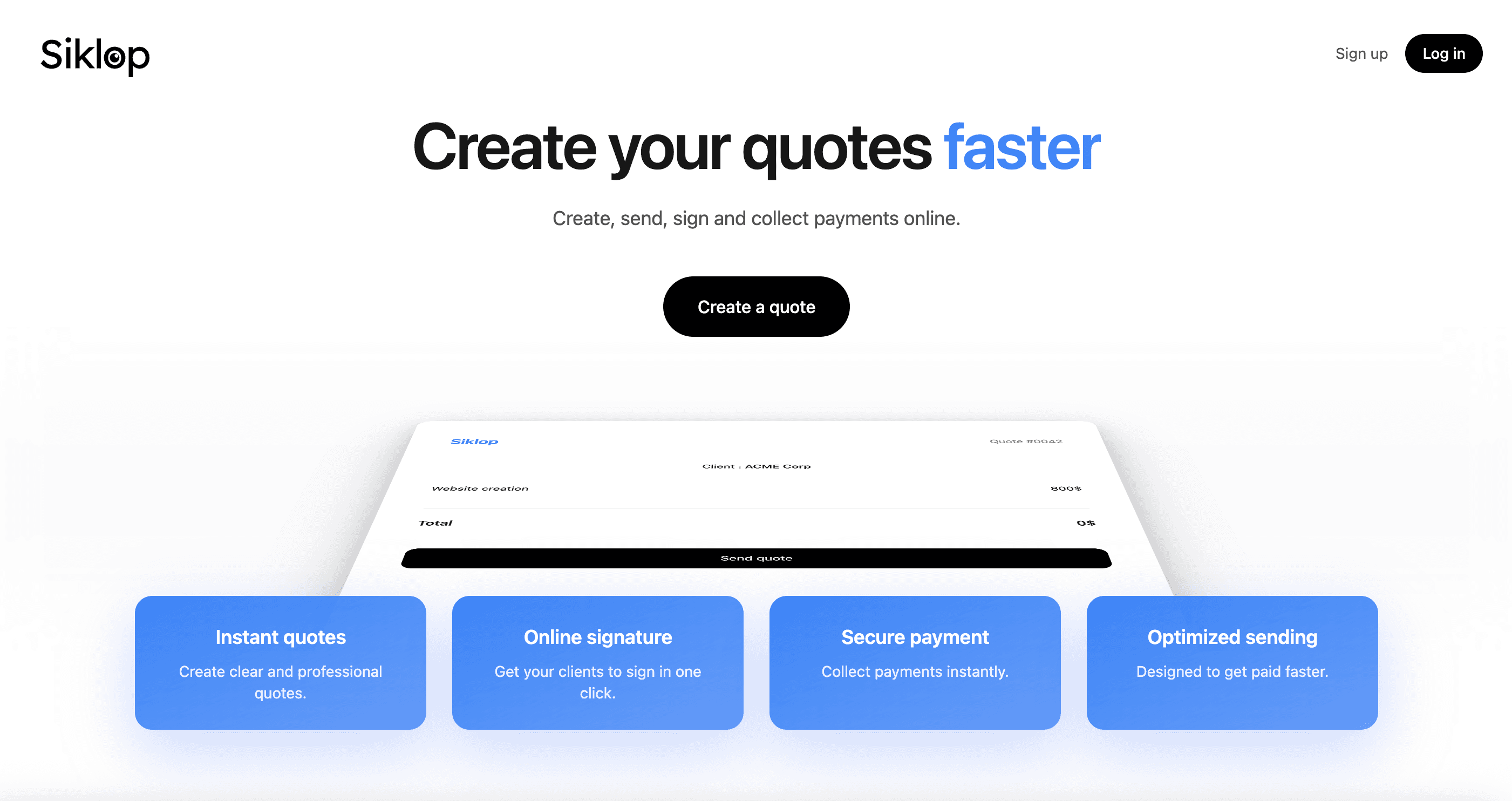
With Siklop, you can streamline this entire workflow using optimized sending. Instead of receiving only a PDF, your customer is taken to a dedicated page where they can view the quote online, download the PDF, sign it electronically, and immediately pay either the required deposit or the full amount by credit card, Apple Pay, or Google Pay. Everything happens in a single workflow, making the experience smoother for your customer while helping you start projects faster.
To learn more about this feature, read our guide: How to send quotes and collect payments online.
How to create a quote that gets accepted
Creating an accurate quote is one thing. Creating a quote that builds trust and encourages your customer to accept your offer is another. When several businesses provide similar services at comparable prices, the quality and presentation of your quote can influence the customer's final decision. A clear, well-structured, and professional quote reinforces your credibility and increases the likelihood of winning the job.
Make your quote easy to read
Your quote is often the first official document your customer receives from your business. It should be visually appealing, well organized, and easy to understand.
Use a clean layout, clear headings, and make important information—such as the total price, payment terms, and quote validity period—easy to find. Avoid cluttered documents that force customers to search for key details.
Describe your services in detail
A vague quote can quickly create uncertainty. Your customer should immediately understand exactly what is included in your offer.
Take the time to describe each service, the materials or products provided, quantities, estimated timelines, and any optional work or exclusions. A detailed quote reduces misunderstandings, minimizes the risk of disputes, and demonstrates your professionalism.
Add your branding
Including your company logo, brand colors, or a consistent visual identity makes your quote instantly recognizable. While this may seem like a small detail, a professionally branded document strengthens your company's image and inspires more confidence than a generic-looking quote.
Proofread before sending
Spelling mistakes, calculation errors, or inconsistent information can make your business appear less professional. Before sending your quote, take a few minutes to review it carefully and ensure that all the information is accurate.
Make it easy for customers to approve your quote
Finally, think about your customer's experience. The easier it is to approve your quote, the more likely you are to close the sale quickly.
With Siklop, your customer can review the quote online, sign it electronically, and immediately pay either a deposit or the full amount using optimized sending. By reducing the number of steps between receiving and approving a quote, you create a smoother customer experience while helping your projects get started sooner.
Common mistakes that can cost you customers
Even if your quote is clear and professionally presented, certain mistakes can delay your customer's decision or encourage them to choose a competitor instead. Here are some of the most common ones.
Waiting too long to send your quote
Many professionals prepare a quote quickly but wait several days before sending it. During that time, your customer may request additional quotes, compare offers, or simply lose interest in the project.
Whenever possible, send your quote shortly after your meeting or consultation. Responding quickly demonstrates professionalism and increases your chances of being the first business to receive a response.
Not following up with your customer
A lack of response doesn't necessarily mean your quote has been rejected. In many cases, your customer has simply been busy, forgotten to reply, or hasn't had time to make a decision.
A polite follow-up a few days after sending your quote is often enough to restart the conversation and shows that you take your projects seriously.
Updating your quote without informing the customer
Changing prices, services, or payment terms after sending a quote can create confusion and reduce your customer's confidence.
If changes are necessary, it's usually better to issue a revised version of the quote and clearly explain what has changed.
Not tracking the status of your quotes
Many businesses have no idea whether their quote has been received, opened, or simply forgotten in an inbox.
Being able to track the status of your quotes helps you follow up at the right time and manage your sales pipeline more effectively.
Starting work before securing the project
Some businesses order materials, reserve time in their schedule, or begin work as soon as a quote has been accepted—even before receiving any payment. If the customer cancels at the last minute or delays payment, this can negatively affect your cash flow.
When appropriate, requesting a deposit before starting the project is often a good practice. It confirms your customer's commitment, secures part of your revenue, and reduces the financial risk of beginning the work.
To learn when it's appropriate to request a deposit and how much to ask for, read our guide: How to ask for a deposit on a quote.
How to save time when creating quotes
Creating quotes with Word or Excel can quickly become time-consuming. Every new document requires you to adjust the layout, copy information from a previous quote, verify calculations, update customer details, and make sure nothing important has been forgotten. The more quotes you create, the more these repetitive tasks slow you down.
An online quote generator automates much of this work. You get a professional template that's ready to use, quantities, discounts, taxes, and totals are calculated automatically, and your quote keeps a clean, consistent layout no matter how many changes you make.
With Siklop, you can also organize your quotes using sections to group related services and line items to describe each product or service in detail. This makes your quotes easier to read, helps customers understand exactly what they're paying for, and gives your business a more professional image.
In addition to saving time, Siklop helps reduce mistakes, prevents important information from being overlooked, and simplifies your entire sales workflow. Once your quote is ready, you can download it as a PDF, send it to your customer, collect an electronic signature, track its status, request a deposit, and receive online payments—all from a single platform.
If you'd like to create professional quotes faster, try our free quote generator.
Conclusion
Creating a professional quote isn't just about listing a price. A great quote clearly explains your offer, describes your services in detail, defines your payment terms, and builds confidence from the very first impression. The clearer and more professional your quote is, the more likely you are to win the project and avoid misunderstandings throughout the job.
Today, there's no need to spend hours creating quotes in Word or Excel. Modern quote generators help you save time, automate calculations, reduce errors, and produce professional PDF quotes in just a few minutes.
If you're looking for a simple way to create professional quotes, personalize them, send them to your customers, collect electronic signatures, and receive online payments, discover Siklop and create your first quote for free in just a few minutes.
FAQ
How can I create a quote for free?
Creating a professional quote for free is easier than ever. You can use a word processor, a spreadsheet, or an online quote generator. While Word and Excel allow you to create quotes at no cost, they usually require more manual work, including designing the layout, calculating totals, applying discounts or taxes, and exporting the document as a PDF.
A free online quote generator simplifies this entire process. In just a few minutes, you can create a professional quote, personalize it with your business information, add your products or services, calculate totals automatically, and download a polished PDF without having to build your own template.
With Siklop, you can create an unlimited number of professional quotes directly from your browser, completely free and without creating an account. If you later need more advanced features, you can create a free account to send quotes by email, collect electronic signatures, track quote activity, convert quotes into invoices, and accept online payments directly from your quotes.
Can I create a quote without quoting software?
Yes. It's entirely possible to create a professional quote without using dedicated quoting software. Many businesses still prepare their quotes with Word, Excel, or even by editing a simple PDF template. These solutions work well if you only create quotes occasionally and are willing to enter all the information manually.
However, if you prepare quotes on a regular basis, these methods quickly become time-consuming. Every new quote requires you to copy information, update customer details, verify calculations, adjust the layout, and make sure no important information has been forgotten. The more quotes you create, the greater the risk of mistakes and inconsistencies.
An online quote generator simplifies this process by automating calculations, formatting, and PDF creation. You save time, reduce errors, and create professional-looking quotes in just a few minutes without having to design your own template.
How do I create a PDF quote?
PDF is the most common format for sending professional quotes to customers. It ensures that your document looks the same on every computer, tablet, and smartphone while preventing accidental formatting changes that can occur with editable documents.
If you're using Word or Excel, you can usually export your quote as a PDF once you've finished editing it. Most online quote generators also allow you to generate a professional PDF with a single click, eliminating the need for additional formatting or conversion.
With Siklop, every quote can be downloaded instantly as a PDF. You can then email it to your customer, share it using a link, or use optimized sending so your customer can review the quote online, sign it electronically, and immediately pay either the required deposit or the full amount. This gives you both a professional PDF document and a much smoother approval process for your customers.
What is the difference between a quote and an invoice?
A quote and an invoice are two related business documents, but they serve different purposes.
A quote is prepared before work begins or before products are supplied. It outlines the services or products you are offering, including quantities, prices, payment terms, timelines, and any required deposit. Once accepted by your customer, it becomes the basis of your agreement.
An invoice, on the other hand, is issued after the work has been completed, the products have been delivered, or according to the agreed payment schedule. Its purpose is to request payment for the goods or services that have been provided and to serve as an official accounting document.
In simple terms, a quote is your commercial proposal, while an invoice is your request for payment. Although they often contain similar information, they are created at different stages of the sales process and serve different business purposes.
With Siklop, you can create a quote, have it approved by your customer, and then convert it into an invoice in just a few clicks without re-entering any information. This saves time, reduces the risk of errors, and simplifies your workflow. To learn more, read our tutorial: Convert a quote into an invoice.
Does a quote need to be signed?
In many situations, it's strongly recommended to have your customer approve or sign a quote before starting any work. A signed quote confirms that your customer agrees with the proposed services, pricing, project timeline, payment terms, and any required deposit. It also provides valuable evidence if a dispute arises later.
For smaller projects, a formal signature may not always be necessary, especially if the customer has accepted the quote in writing or confirmed their approval by another means. However, for larger projects or whenever significant financial commitments are involved, obtaining a signed quote is considered a best practice that protects both your business and your customer.
With Siklop, you can send your quote using optimized sending. Your customer can review the quote online, sign it electronically, and, if you've enabled it, immediately pay either the required deposit or the full amount. This creates a fast, secure, and completely digital approval process.
Can I edit a quote after sending it?
Yes. As long as your customer hasn't accepted the quote, you can freely update it to correct mistakes, adjust pricing, add services, or revise your terms and conditions. If you make changes, it's generally recommended to send an updated version so your customer is always reviewing the latest version of the document.
If the quote has already been accepted, you should avoid modifying it directly. Any changes to the scope of work, pricing, or payment terms should first be approved by your customer. Depending on the situation, you may choose to issue a new quote or prepare a quote amendment (sometimes called a change order), which formally documents the agreed changes while preserving the original agreement.
With Siklop, you can edit a quote before it's accepted and resend it to your customer in just a few clicks. If you need to create a similar proposal, you can also use the duplicate feature to copy an existing quote instead of creating a new one from scratch. This saves time, reduces repetitive work, and helps prevent errors.
To learn more, read our tutorial: Duplicate a quote.
How long is a quote valid?
There is no universal validity period for a quote. You are free to decide how long your quote remains valid based on your business, pricing strategy, supplier costs, or the availability of your products and services. In practice, a validity period of 30 days is commonly used, although you may choose a shorter or longer period depending on your circumstances.
Including a validity period is strongly recommended. It clearly tells your customer how long your prices and terms remain applicable while protecting your business if material costs, supplier prices, or your own rates change before the project begins.
For example, you could include the following statement on your quote:
This quote is valid for 30 days from the issue date.
Once this period has expired, you're free to issue a new quote with updated pricing or revised terms if necessary. Clearly stating a validity period helps set expectations, protects your business, and encourages customers to make a decision within a reasonable timeframe.
How do I send a quote to a customer?
Once your quote is ready, you can send it to your customer in several ways: as a PDF attachment by email, through a shareable link, or directly from your quoting software. Whatever method you choose, the goal is to make it as easy as possible for your customer to review your proposal and understand the next steps.
Sending a PDF by email is still the most common approach. However, this usually requires your customer to open the PDF, review it, reply to your email, sometimes print and sign the document, and make a separate payment if a deposit is required. Each additional step can slow down the approval process or even cause unnecessary delays.
With Siklop, you can use optimized sending. Instead of receiving only a PDF, your customer is taken to a dedicated page where they can review the quote online, download the PDF, sign it electronically, and immediately pay either the required deposit or the full amount using a credit card, Apple Pay, or Google Pay. You can also track whether your quote has been sent, viewed, signed, or paid, making follow-ups much easier and helping you close projects faster.
To discover all the ways you can share and manage your quotes, read our tutorial: Share and manage a quote.
If you'd like to learn how to collect deposits or online payments directly from your quotes, check out our guide: How to send quotes and collect payments online.
How can I get my quote accepted faster?
Price isn't the only factor that influences a customer's decision. A clear, professional, and easy-to-understand quote builds trust and naturally increases your chances of receiving a quick response. On the other hand, a poorly presented, vague, or difficult-to-approve quote can delay your customer's decision—even if your pricing is competitive.
To improve your chances of getting your quote accepted, take the time to clearly describe your services, present your pricing transparently, define your payment terms, and send your quote as soon as possible after meeting with your customer. The more complete and professional your proposal looks, the easier it is for your customer to make a confident decision.
The approval process itself also plays an important role. If your customer has to print the quote, sign it, scan it, and then make a separate bank transfer, every additional step increases the risk of delays or even losing the sale altogether.
With Siklop, optimized sending simplifies the entire process. Your customer can review the quote online, sign it electronically, and immediately pay either a deposit or the full amount using a credit card, Apple Pay, or Google Pay. By removing unnecessary steps, you create a smoother customer experience and increase your chances of getting your quotes approved faster.
Can I create a quote from my phone?
Yes. Today, most online quote generators work perfectly on smartphones, tablets, and computers. This means you can create, edit, and send professional quotes from anywhere, directly through your web browser, without installing any software.
This flexibility is especially valuable for contractors, tradespeople, technicians, sales representatives, freelancers, and anyone who regularly meets customers on-site. After a consultation, site visit, or service call, you can prepare and send your quote immediately instead of waiting until you're back at the office. Sending a quote quickly often increases your chances of winning the job.
If you're a contractor or tradesperson looking for a simple way to prepare quotes while on the go, try our free quote generator for contractors.
With Siklop, every feature is available from your phone. You can create professional quotes, customize them, download them as PDFs, send them using optimized sending, track their status, collect electronic signatures, and receive deposits or online payments—all from a simple web browser.