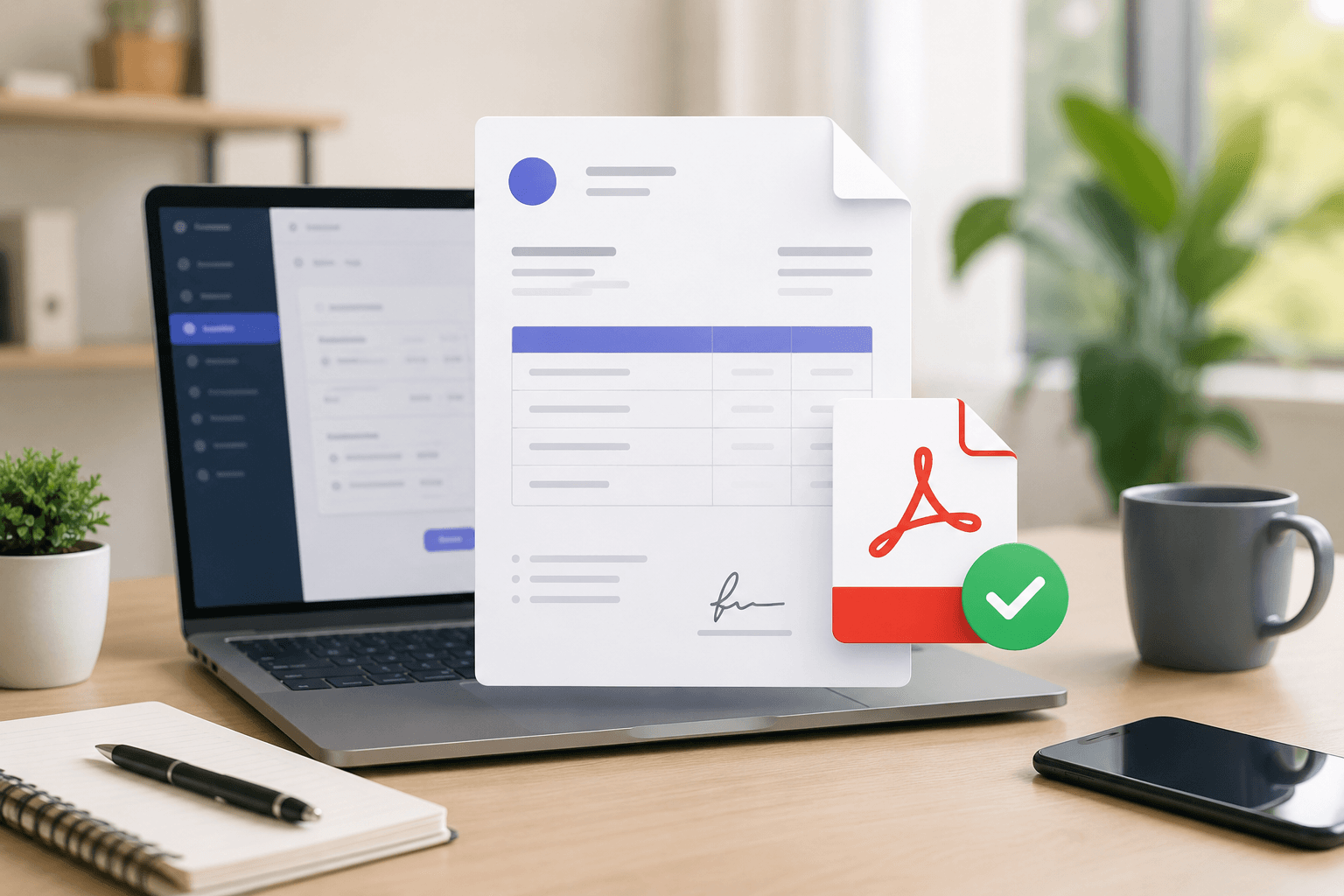
Creating a PDF quote is now the preferred solution for most professionals. Easy to share, compatible with all devices, and resistant to accidental changes, the PDF format allows you to send a clear, professional document that is ready to be reviewed and approved by your client.
However, many businesses still create their quotes using Word or Excel without always knowing how to generate a clean PDF, what information should be included or which tools can help them save time. A poorly formatted or incomplete PDF quote can slow down your client's decision-making process and create a less professional impression of your business.
In this guide, you'll learn how to create a PDF quote step by step, explore the different tools available, discover the information every quote should include, avoid the most common mistakes, and follow best practices for sending professional PDF quotes that your clients can easily review, approve and sign.
Why create a PDF quote?
The PDF format has become the standard for sending professional quotes. Whether you're a contractor, freelancer, consultant, tradesperson or small business owner, it allows you to share a clean, professional document that looks exactly the same on every device. Unlike a Word or Excel file, a PDF quote keeps its formatting regardless of whether your client opens it on a computer, tablet or smartphone.
One of the biggest advantages of a PDF is its professional appearance. Your client receives a finalized document that cannot be accidentally modified, reducing formatting issues, compatibility problems and unintended changes. PDF is also the preferred format for printing, archiving and sending quotes by email.
Although Word and Excel can be used to create quotes, they often require additional work such as formatting the document, calculating totals manually, exporting it as a PDF and checking that everything displays correctly. In contrast, a quote generator can produce a professional PDF in just a few clicks with automatic calculations and a consistent layout.
A PDF quote is suitable for almost every type of business, whether you provide services, sell products, carry out construction work or offer professional consulting. Regardless of your industry, sending your quotes as PDFs strengthens your professional image, makes communication with clients easier and ensures your document can be viewed exactly as intended.
Different ways to create a PDF quote
There are several ways to create a PDF quote today. The best option depends on how often you create quotes, the features you need and how much time you want to spend preparing your documents.
The table below compares the most common solutions used by professionals.
| Solution | Ease of use | Advantages | Limitations | |
|---|---|---|---|---|
| Word | ✅ | ★★☆☆☆ | Easy to use, fully customizable, suitable for occasional use. | Manual formatting, manual calculations, higher risk of errors. |
| Excel | ✅ | ★★☆☆☆ | Automatic calculations, ideal for pricing tables and formulas. | Less professional layout, more difficult to customize, not ideal for frequent quotes. |
| Google Docs | ✅ | ★★★☆☆ | Accessible from anywhere, online collaboration, built-in PDF export. | Limited quote-specific features and calculation tools. |
| Quote software | ✅ | ★★★★☆ | Customer management, quotes, invoices, history and automation. | Often requires a paid subscription and account creation. |
| Online quote generator | ✅ | ★★★★★ | Fast quote creation, automatic calculations, professional PDF output, accessible from any browser. | Available features vary depending on the platform. |
If you only create a few quotes each year, Word or Excel may be sufficient. However, if you regularly prepare quotes, an online quote generator can save a significant amount of time while reducing the risk of mistakes. You can generate a professional PDF quote in just a few minutes without worrying about formatting or manual calculations.
If you'd like to create a professional PDF quote directly from your browser, try our free quote generator.
How to create a PDF quote step by step
Once you've chosen the tool that best fits your business, creating a PDF quote is straightforward. The goal is not only to generate a PDF document, but also to produce a clear, professional quote that is easy for your client to understand and approve.
Step 1: Create your quote
Start by creating a new quote using the tool of your choice, whether it's Word, Excel, dedicated quoting software or an online quote generator. Before describing your products or services, take a few moments to enter the key information that identifies both your business and your client.
A professional quote should typically include:
- your business name;
- your business address and contact details;
- your client's name or company name;
- your client's contact details;
- the quote issue date;
- a unique quote number.
For example:
Business: ABC Renovation
12 Artisan Street
New York, NY 10001Client: John Smith
245 Madison Avenue
New York, NY 10017Quote #: Q-2026-018
Date: July 5, 2026
If you'd like to learn more about creating a professional quote, read our complete guide: How to create a professional quote.
Step 2: Add your products or services
Once you've entered the general information, it's time to describe the products or services you're offering. This is one of the most important parts of your quote, as it allows your client to clearly understand what is included in your proposal and how the total amount is calculated.
For each line item, provide a clear and detailed description to avoid any confusion. If necessary, organize your quote into multiple sections or categories to separate different phases of the project. A well-structured quote is easier to read and reinforces your professional image.
For each item, include:
- a description of the product or service;
- the quantity;
- the unit price;
- any applicable discount;
- the line total.
For example:
| Description | Quantity | Unit price | Total |
|---|---|---|---|
| Main service | 1 | $850 | $850 |
| Materials | 3 | $75 | $225 |
| Travel expenses | 1 | $40 | $40 |
The more detailed your quote is, the easier it is for your client to understand exactly what they are paying for. Clear descriptions reduce misunderstandings, help prevent disputes and immediately give your business a more professional image.
Step 3: Check the important details
Before generating your quote as a PDF, take a few moments to make sure all the essential information is included. This final review helps prevent omissions, reduces unnecessary back-and-forth with your client and ensures your quote is complete before you send it.
Some of the most important details to verify include:
- the quote validity period;
- your payment terms;
- accepted payment methods;
- the estimated delivery or completion timeframe;
- any deposit required before work begins.
For example, you could include information such as:
Quote valid for: 30 days from the issue date.
Payment terms: 30% deposit upon approval, balance due upon project completion.
Accepted payment methods: Bank transfer or credit card.
Providing this information upfront reassures your client, clearly defines the terms of your proposal and reduces the risk of misunderstandings once the quote has been accepted. It also answers many of your client's questions before they even need to ask.
If you're unsure how much to request upfront, read our complete guide: How to ask for a deposit on a quote.
Step 4: Generate your PDF quote
Once your quote is complete, you can generate it as a PDF. This step converts your document into a file that is ready to share with your client while preserving the same layout across all devices.
Before exporting your quote, take a few moments to review it carefully. Make sure all the required information is included, that no line items are missing and that the amounts shown accurately reflect your offer. A final review often helps you catch spelling mistakes, calculation errors or missing information.
It's also a good idea to open the PDF after it has been generated to check its appearance. Make sure the layout is easy to read, tables are not split across multiple pages, your logo displays correctly and all important information is clearly visible. A clean, well-formatted PDF immediately reinforces your professional image.
Most quoting software and online quote generators can generate a professional PDF in a single click. You then have a document that is ready to send by email, share online or use as part of an electronic signature workflow.
If you'd like to learn how to download a PDF quote with Siklop, read our tutorial: Download a PDF quote.
Step 5: Send your PDF quote
Your PDF quote is now ready to be sent to your client. The goal is to make it easy for them to review your proposal and access all the information they need before making a decision.
PDF has become the standard format for sending professional quotes. It preserves your layout on every device and avoids the formatting issues that can occur with Word or Excel documents.
However, a standard PDF also has its limitations. Once the document has been sent, your client usually has to reply by email to approve the quote and make a separate payment if a deposit is required. As a result, tracking the progress of the quote often depends on multiple back-and-forth conversations.
To simplify this process, some solutions combine your PDF quote with a complete approval workflow. With Siklop, Optimized Send allows your client to view the quote online, download the PDF and sign it electronically. You can also add an integrated online payment module, allowing your client to pay a deposit or the full amount directly by credit card, Apple Pay or Google Pay. You'll also be able to track whether your quote has been viewed, signed or paid in real time. To learn more about sending quotes and collecting payments online, read our complete guide: How to send quotes and collect payments online.
Common mistakes to avoid when creating a PDF quote
Creating a PDF quote is straightforward, but a few common mistakes can make your business appear less professional or make it harder for your client to approve your proposal. Before sending your quote, take a few minutes to check the following points.
Poor quote presentation
A cluttered or poorly organized quote can leave a negative first impression, even if the quality of your products or services is excellent. Misaligned tables, inconsistent spacing and an overloaded layout make your quote harder to read and can reduce your client's confidence in your business.
Use a clean layout with clear headings, easy-to-read tables and a logical visual hierarchy that highlights key information such as the total amount, payment terms and the quote validity period.
Forgetting important information
Before generating your PDF quote, make sure all the essential information is included, such as the contact details of both parties, the products or services provided, pricing, payment terms, the quote validity period and any required deposit.
An incomplete quote often leads to unnecessary follow-up questions and can delay your client's decision.
Not reviewing the PDF before sending it
Once your quote has been exported as a PDF, take a few moments to open and review it. Check that every page displays correctly, tables are not split across pages, your logo appears properly and all prices and important information are easy to read.
This final review helps prevent avoidable mistakes and immediately reinforces your professional image.
Creating a PDF that is difficult to read on mobile
Many clients now review quotes directly from their smartphones. A document with small text, oversized tables or a crowded layout can quickly become difficult to read on a mobile screen.
By using a clean, well-structured and uncluttered layout, you make your PDF quote easier to read regardless of the device your client is using.
How to save time when creating a PDF quote
Creating a PDF quote with Word or Excel can quickly become time-consuming. Every new quote requires you to update the layout, copy an old document, edit customer information, verify calculations, export the file as a PDF and double-check that nothing has been forgotten. If you create quotes regularly, these repetitive tasks can consume a significant amount of time.
An online quote generator automates much of this process. You start with a professional template, quantities, discounts and totals are calculated automatically, and your quote remains clean and well-formatted even after multiple edits.
With Siklop, you can also organize your quotes using sections and line items, making it easier to present your products or services clearly. Once your quote is complete, it can be generated instantly as a PDF. You can then send it to your client, collect an electronic signature, add an integrated online payment module and track its status from a single platform.
By automating repetitive tasks and centralizing the entire quoting process, you save valuable time while providing a smoother and more professional experience for your clients.
If you'd like to create a professional PDF quote in just a few minutes, try our free quote generator.
Conclusion
A PDF quote has become the standard way to present a clear, professional proposal that is easy to share with clients. Compatible with every device, it preserves your formatting when viewed, printed or archived while offering a more professional appearance than a Word or Excel document.
Creating a PDF quote involves more than simply exporting a file. A well-written quote should clearly describe your products or services, include all the essential information and be easy for your client to read and understand. The better your quote is presented, the more confidence it inspires and the more likely it is to be approved.
If you'd like to save time while creating professional PDF quotes, discover Siklop. You can create your quotes directly from your browser, generate professional PDFs, collect electronic signatures, add an integrated online payment module and track the status of every quote from a single platform.
FAQ
How can I create a PDF quote for free?
There are several ways to create a PDF quote for free. You can use a word processor such as Word, a spreadsheet like Excel or an online quote generator. While the first two options allow you to create a quote at no cost, they usually require more manual work, including formatting the document, calculating totals, exporting it as a PDF and checking the final result.
An online quote generator makes this process much easier. In just a few minutes, you can create a professional quote, enter your business information, add your products or services, calculate totals automatically and download your quote as a PDF without having to design your own template.
With Siklop, you can create unlimited PDF quotes for free, directly from your browser and without signing up. If you later want access to advanced features such as email delivery, electronic signatures, quote tracking, quote-to-invoice conversion or an integrated online payment module, you can create a free account at any time.
Can I create a PDF quote with Word?
Yes. Microsoft Word allows you to create a professional quote and easily export it as a PDF. This solution is suitable if you only create a few quotes each year or already have a template that you customize for each client.
However, as your business grows, Word quickly reaches its limits. You need to update the layout manually, verify calculations, edit customer information for every new quote and export the document as a PDF each time. These repetitive tasks are time-consuming and increase the risk of mistakes.
If you create quotes regularly, an online quote generator is generally a more efficient solution. It automates document creation, calculations, formatting and PDF generation, allowing you to produce professional quotes in just a few minutes.
If you'd like to create professional PDF quotes without building your own template, try our free quote generator.
Can I create a PDF quote with Excel?
Yes. Excel allows you to create a quote and export it as a PDF. Thanks to its built-in formulas, it's especially useful for managing quantities, unit prices, discounts and totals. Many freelancers and small businesses use Excel to prepare quotes without investing in dedicated quoting software.
However, Excel wasn't specifically designed for creating quotes. The layout usually has to be created manually, templates need to be maintained over time and even small changes can affect formatting or formulas. As the number of quotes you create increases, managing them in Excel can quickly become time-consuming.
If you prepare quotes regularly, an online quote generator is generally a more efficient solution. It automates formatting, calculations and PDF generation, allowing you to create professional quotes faster while reducing the risk of mistakes.
If you'd like to create professional PDF quotes in just a few minutes, try our free quote generator.
How do I send a PDF quote by email?
Once your quote has been generated as a PDF, simply attach it to an email and send it to your client. This remains the most common method used by professionals because it's quick, universally supported and allows clients to view the document easily on a computer, tablet or smartphone.
It's also a good idea to include a short message summarizing your proposal, reminding the client of the quoted amount or highlighting the quote's validity period. A clear and personalized email reinforces your professional image and makes communication easier.
If you'd like to go one step further, Siklop lets you create unlimited PDF quotes for free, directly from your browser and without signing up. You can then create a free account to unlock advanced features such as Optimized Send, electronic signatures, quote tracking and an integrated online payment module that allows your clients to pay a deposit or the full amount directly from their quote.
If you'd like to create PDF quotes for free, try our quote generator.
How do I sign a PDF quote?
There are several ways to sign a PDF quote. The traditional approach is to print the document, sign it by hand, scan it and send it back to the business. You can also add an electronic signature directly to a PDF using dedicated software or an online e-signature platform.
Some solutions simplify this process by integrating electronic signatures directly into the quote approval workflow. With Siklop, you can create unlimited PDF quotes for free, directly from your browser and without signing up. By creating a free account, you can use Optimized Send, allowing your client to view the quote online, sign it electronically, download the PDF and, if needed, use an integrated online payment module to pay a deposit or the full amount.
If you'd like to create PDF quotes for free, try our quote generator.
Is a PDF quote legally valid?
Yes. A PDF quote has the same legal value as a quote created in any other format, provided it includes the information required by the laws and regulations applicable to your business and country. The file format itself does not affect its legal validity. Whether it is printed, sent by email or shared online, a PDF quote remains a valid quote.
Once accepted by your client, the quote may become a legally binding agreement between both parties. For this reason, it is important to keep a copy of the document together with proof of acceptance, whether that is a handwritten signature, an electronic signature or any other legally recognized method of approval.
With Siklop, you can create unlimited PDF quotes for free, directly from your browser and without signing up. By creating a free account, you can also send your quotes using Optimized Send, collect electronic signatures and track the status of your quotes in real time.
If you'd like to create PDF quotes for free, try our quote generator.
Can I modify a PDF quote?
Yes. As long as your client has not accepted your quote, you can modify it to correct a mistake, adjust pricing, add a service or update your payment terms. However, instead of editing the PDF that has already been sent, it's recommended to update the original quote and generate a new PDF version. This ensures your client always receives the latest and most accurate version.
If your quote has already been accepted, it's generally best not to modify the original document. Any changes to the scope of work, pricing or payment terms should be approved by your client. Depending on the nature of the changes, you may issue a new quote or create a quote amendment, which formally records the agreed changes while preserving the original agreement.
If the changes are substantial, creating a new quote is often the simplest solution. With Siklop, you can also duplicate a quote to create a new version without having to re-enter all of the information.
How do I convert a quote to PDF?
Converting a quote to PDF is very straightforward. If you're using Word, Excel or Google Docs, simply use the "Save As" or "Export as PDF" option. This creates a document that preserves its formatting and can be viewed consistently on any device.
Online quote generators make the process even easier by generating the PDF automatically from your quote. There's no need to adjust the layout or perform a manual export, allowing you to create a professional PDF in just a few clicks.
With Siklop, you can create unlimited PDF quotes for free, directly from your browser and without signing up. Once your quote is ready, you can download it as a PDF, send it to your client, print it, duplicate it or convert it into an invoice whenever you need.
To learn more about every way to share and manage your quotes with Siklop, read our tutorial: Share and manage a quote.
Can I receive payments from a PDF quote?
No. A standard PDF quote cannot collect payments on its own. It is simply a document that your client can view, download or print. If you want to request a deposit or collect the full payment, you typically need to send a separate payment link or wait for a bank transfer.
Some quoting solutions go a step further by integrating an online payment module directly into the quote approval process. Your client can review the quote, sign it electronically if required and pay a deposit or the full amount from a single interface. This creates a smoother customer experience and helps you get paid faster.
With Siklop, you can create unlimited PDF quotes for free, directly from your browser and without signing up. By creating a free account, you can add an integrated online payment module to your quotes, allowing your clients to pay a deposit or the full amount directly from their quote.
To learn more about this feature, read our guides Best quote software with online payment and How to send quotes and collect payments online.